Learn to Perform Virtual Disaster Recovery with this Simple Guide
Today, organizations completely depend on virtual machines for storing their critical data as well as…

 anilr
anilr
The online gaming world has completely changed its face in comparison to the early days of gaming. You can play with a group and also against several strangers. Want to enjoy a weekend gaming marathon with your group of friends?
Simply set up your own online gaming server and play as and when you want. Everyone gets connected to the same dedicated gaming server without the need to find everyone on a commercial server open to all. Also, there won’t be disturbance from strangers playing.
One other benefit of a dedicated game server is that even if something goes wrong on your gaming machine and you need to reboot the system, others can still continue playing the game. So, let’s learn to set up a dedicated game server.
You would be requiring the following resources –
Working on Steam CMD
Download the server files.
force_install_dir C:\path\to\folder
app_update 346110 validate
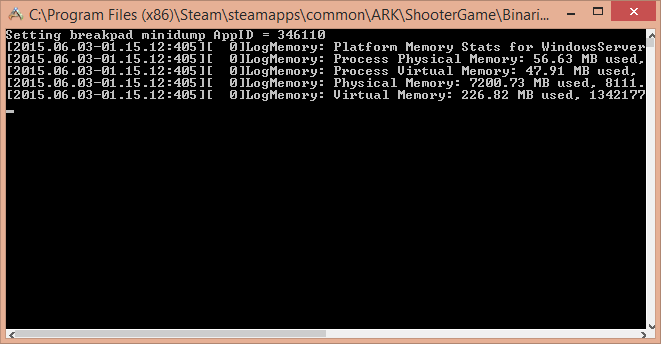
Starting the Server
StartShooterGameServer.exeTheIsland?SessionName=MyServer ServerPassword=MyPassword?
MaxPlayers=20?MultiHome=127.0.0.1?Port=27015?QueryPort=27016
Configuring the Server –
Edit the command line as per your requirement. Below is the explanation of each term in the configuration –
That’s all. Wait for a few seconds for the server to view the server list and your dedicated game server would be ready. Enjoy your online gaming!

Explore more hosting insights, tips and industry updates.
Today, organizations completely depend on virtual machines for storing their critical data as well as…
Google’s Gmail provides a free SMTP server, it can be utilizing by anybody who has…
In this tutorial, we’ll explain to you how to add customizations to Apache. Customizations made…