How to add New Clients in Modern Bill V5.1?
> Login to Clients> Add new Clients> The following is the procedure and information should…


 Paul Lopez
Email forwarding in cPanel allows you to automatically redirect incoming emails from one email address to another without managing multiple inboxes. This is especially useful for businesses and professionals who want important emails delivered directly to their preferred inbox without logging into webmail every time.
In this guide, you will learn how to set up email forwarding in cPanel using simple steps that work instantly and reliably.
To set up email forwarding in cPanel, log in to your cPanel account, go to the Email section, click Forwarders, add the source email address, enter the destination email address, and save the forwarder. Email forwarding starts working immediately.
Email forwarding is a feature in cPanel that automatically sends incoming emails from one email address to another destination email address.
For example, emails sent to [email protected] can be forwarded to your Gmail or Outlook inbox without opening cPanel.
This helps streamline communication and ensures no important emails are missed.
Email forwarding in cPanel is commonly used for
Before you begin, make sure
If you have not created an email account yet, refer to our KB – How to Create an Email Account in cPanel
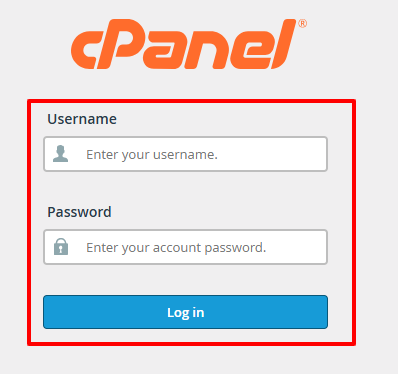
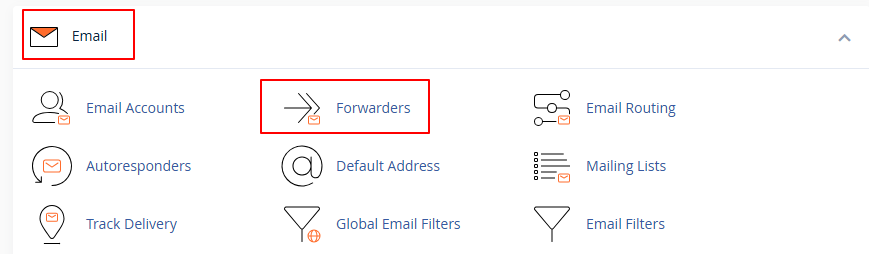
Inside cPanel
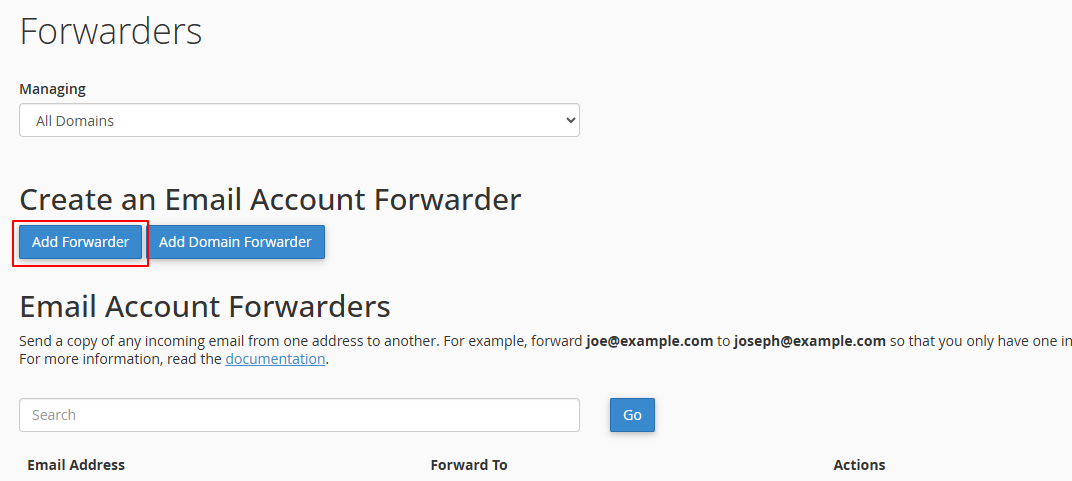
This section allows you to manage all email forwarding rules for your domain.
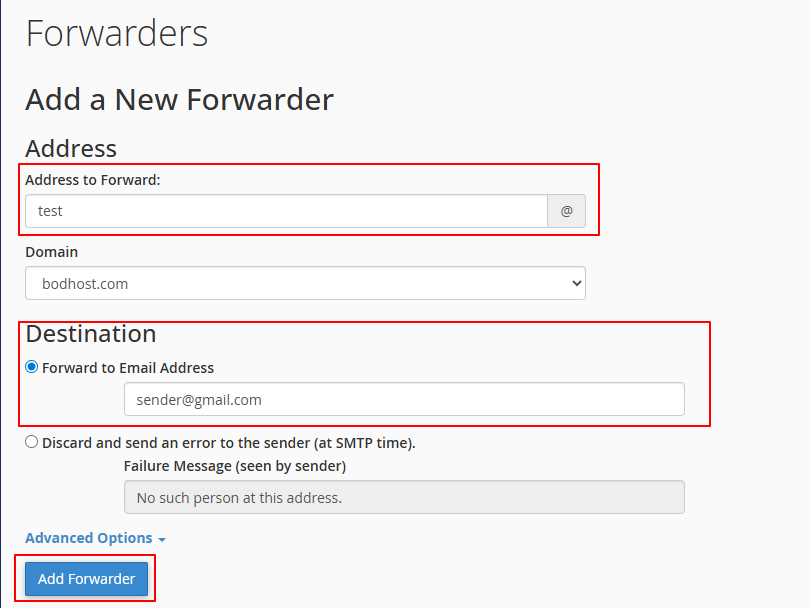
Example [email protected]
Under the destination section
This can be a Gmail address, Outlook inbox, or another domain email.
To verify email forwarding in cPanel
This can happen if
To avoid this
Email forwarding may not be ideal when
Setting up email forwarding is a simple and effective way to manage business communication. With just a few clicks, you can ensure important emails are delivered to the right inbox without delay.
If you need help with email setup or troubleshooting, bodHOST support is always available to assist you.

Explore more hosting insights, tips and industry updates.
> Login to Clients> Add new Clients> The following is the procedure and information should…
Summary Since the availability of Windows Server 2012, several new features of storage have made…
This guide will teach you how to see What Apps Are Installed In My Plesk…