Cloud Web Hosting – The Emerging Trend in Hosting Technology
In the strong public feeling of economic pressure, large organizations and even small companies are…

 Paul Lopez
To view the error log in cPanel, you can quickly find what’s causing website issues like PHP errors, missing files, permission problems, or 500 errors. It helps you monitor and diagnose errors in real time so you can fix problems faster and keep your site running smoothly.
Here’s a quick guided step to help you find your website’s error log in cPanel:
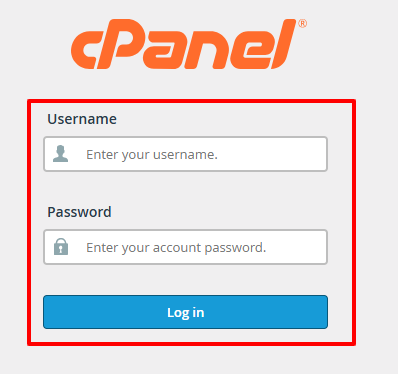
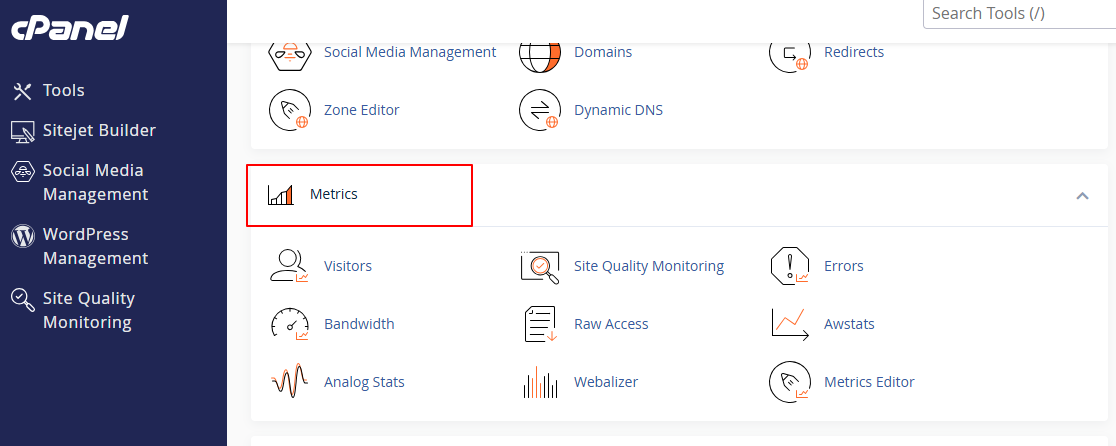
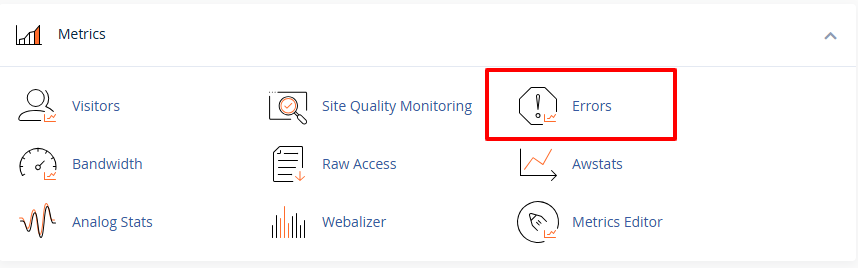
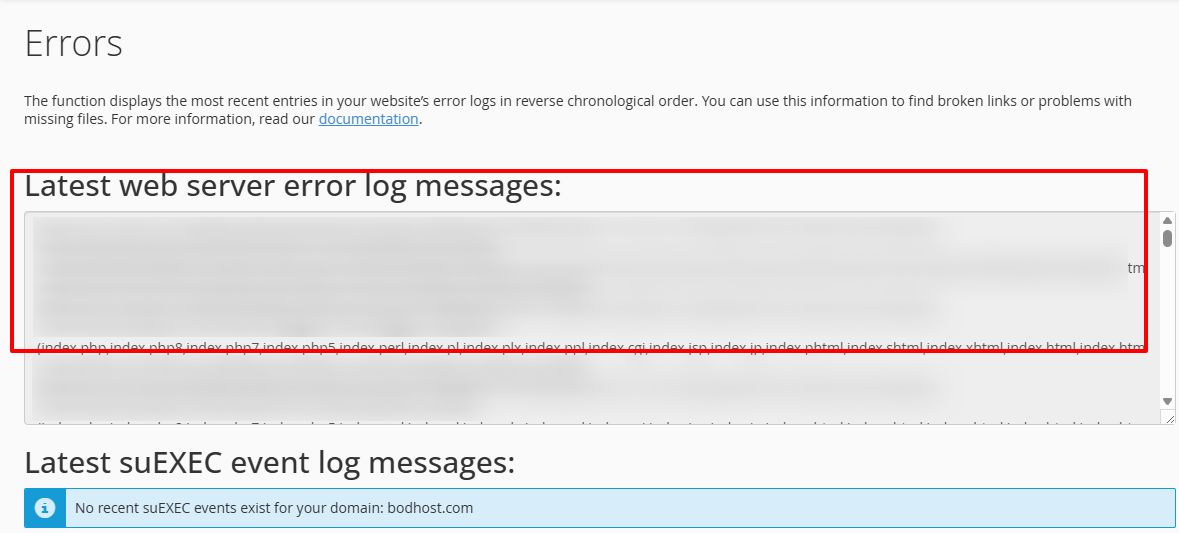
When checking your error logs, you may see messages like:
Even if they seem technical, these logs make it easier to pinpoint what went wrong and where.
Knowing how to check the error log in cPanel helps you quickly identify issues and keep your website running smoothly. And if you ever need help, bodhost’s 24/7 support team is always available to troubleshoot and fix problems for you.
Read more about our article: How to Make cPanel / WHM Servers More Secure

Explore more hosting insights, tips and industry updates.
In the strong public feeling of economic pressure, large organizations and even small companies are…
If you want to add a module in Zikula then you can follow the following…
In Linux, it’s important to monitor the size of your directories to manage disk space…