
How to Create a Postgres User (5 Methods)
In PostgreSQL, a user is essentially a role with login privileges. Creating users is a…


 Paul Lopez
Changing your Remote Desktop password is an important part of managing a Windows server securely. If you want to update your password before it expires, or an administrator needs to reset another user’s password, Windows provides several ways to do it.
When you are connected through Remote Desktop, the usual Ctrl + Alt + Delete shortcut affects the computer you are connecting from rather than the remote server. Instead, you can use Ctrl + Alt + End or one of the other methods described below to change the password on the remote Windows system.
There are several ways to change an RDP password. Choose the method that best suits your Windows environment and access level.
The Ctrl + Alt + End shortcut is one of the easiest ways to access the Windows security screen inside an RDP session.
This shortcut sends the command to the remote Windows system instead of your local computer.
If the keyboard shortcut does not work or your keyboard does not provide convenient access to the required keys, you can use the Windows On-Screen Keyboard.
This provides another way to send the security command within the RDP session.
If your Windows password expires before you have a chance to change it, you may not be able to complete the normal RDP login.
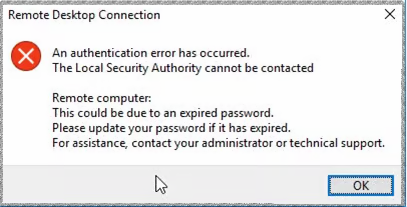
In this situation, contact your system administrator or IT support team and request that the account password be reset. Once the account has been reset, use the new credentials to connect to the remote server.
After signing in, you can change the temporary or administrator-provided password to a new one that meets your organization’s password requirements.
Windows Security Options can also be opened from Command Prompt.
Open Command Prompt and run:
C:\Windows\explorer.exe shell:::{2559a1f2-21d7-11d4-bdaf-00c04f60b9f0}
This opens the Windows Security options, where you can access the password-change option.
You can also create a small Visual Basic Script to open the Windows Security Options screen.
Open Notepad and add:
Set objShell = CreateObject("Shell.Application")
objShell.WindowsSecurity
Save the file as:
securityoptions.vbs
Run the file on the Windows system. It will open the Windows Security Options screen, allowing you to access the available password-management options.
Changing and resetting a password are slightly different. When changing a password, you normally provide the existing password. A password reset allows an administrator to replace the existing password without requiring the old one.
The following methods are useful when you have the required administrative permissions.
If the Windows account is managed through Active Directory, you can use Active Directory Users and Computers to reset the password.
1. Open Active Directory Users and Computers
Open the Run dialog and enter:
dsa.msc
Press Enter to open Active Directory Users and Computers.
2. Locate the User Account
Navigate to the organizational unit or container where the required user account is stored.
3. Select the User Account
Right-click the user account and select Reset Password.
4. Set a New Password
Enter the new password in the password field and make sure it follows your organization’s password policy.
5. Confirm Password Reset
Enter the password again in the confirmation field.
6. Apply Changes
Click OK to complete the reset.
After the password has been reset, the user can use the new credentials to access the RDP session and other services that use the same Active Directory account.
The Windows net user command provides a simple way to reset a local or applicable Windows user account password.
1. Open the Command Prompt
Open Command Prompt as an administrator on the remote Windows computer.
2. Execute the Net User Command
Use:
net user username new_password
Replace username with the account name and new_password with the password you want to set.
For example:
net user John newpass123
3. Confirm Password Reset
Press Enter. If the operation is successful, Command Prompt displays a confirmation message.
Security Note: Avoid placing passwords directly in command history or scripts on systems where other users may be able to access them. Use a secure password-management approach whenever possible.
For Active Directory accounts, you can use the PowerShell Set-ADAccountPassword cmdlet.
1. Launch PowerShell
Open PowerShell as an administrator from the remote Windows system.
2. Import the Active Directory Module
If the module is not already loaded, run:
Import-Module ActiveDirectory
3. Reset the Password
Run:
Set-ADAccountPassword -Identity "username" -Reset -NewPassword (ConvertTo-SecureString -AsPlainText "new_password" -Force)
Replace username and new_password with the appropriate account details.
4. Confirm Password Reset
After the command completes successfully, the password for the selected Active Directory account will be reset.
For a local Windows user account, PowerShell provides the Set-LocalUser cmdlet.
Run:
Set-LocalUser -Name "username" -Password (ConvertTo-SecureString -AsPlainText "new_password" -Force)
Replace the username and password with the appropriate values.
After successful execution, the selected local account will use the new password.
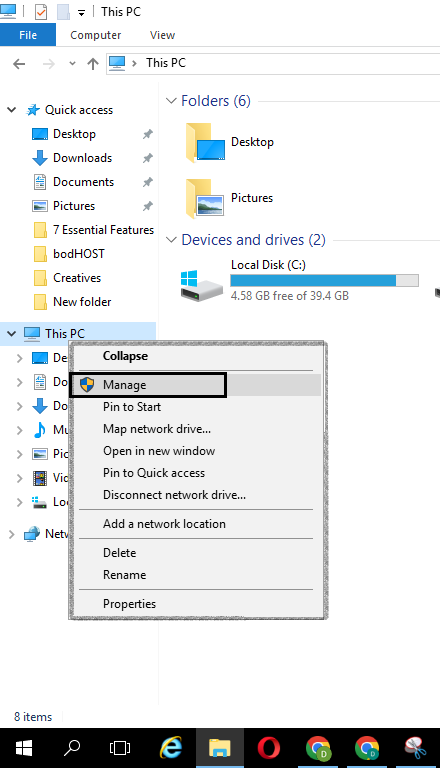
You can change the password of a local Windows account through Computer Management.
1. Open Computer Management
Right-click the Start button and select Computer Management. You can also press Win + X and select Computer Management.
2. Go to Local Users and Groups
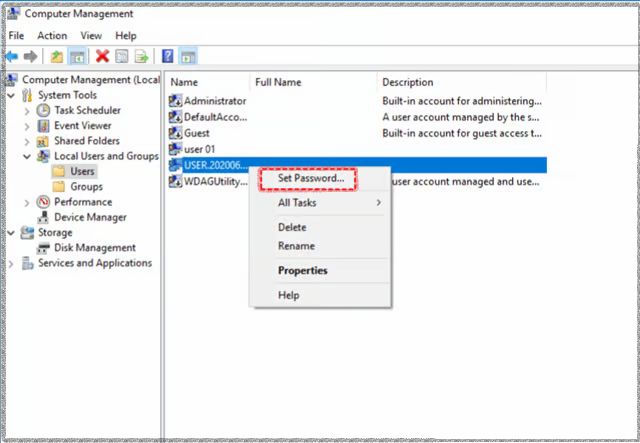
Expand System Tools, then select Local Users and Groups.
3. Select Users
Click the Users folder. A list of local accounts will appear in the right-hand panel.
4. Choose the User Account
Right-click the account whose password you want to change and select Set Password.
5. Enter New Password
Enter the new password and confirm it when prompted.
6. Save Changes
Click OK to save the new password.
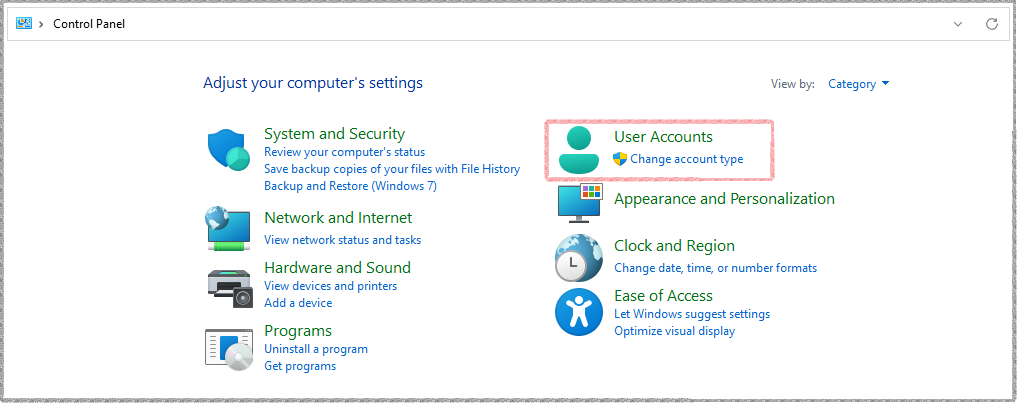
You can also change the password of your Windows account through Control Panel.
Step 1: Connect to the Remote Computer
Use Remote Desktop Connection to connect to your Windows server.
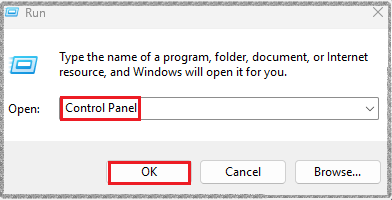
Step 2: Open Control Panel
Click Start, search for Control Panel, and open it.
Step 3: Navigate to User Accounts
Select User Accounts or the available account-management option.
Step 4: Change Your Password
Select Change your Windows password.
Step 5: Enter Current and New Password
Enter your existing password, followed by your new password and confirmation.
Step 6: Save Changes
Click Change password to apply the new credentials.
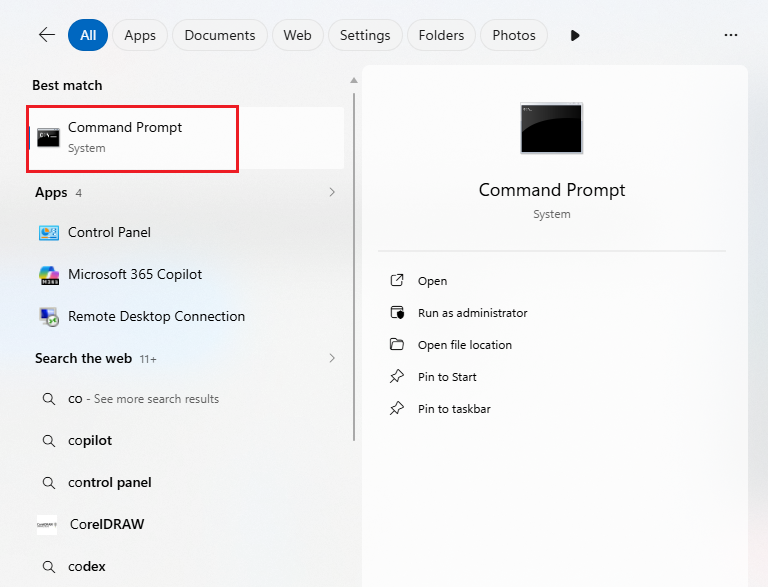
You can also change a local Windows password directly from Command Prompt.
Step 1: Open Command Prompt
Inside the RDP session, search for Command Prompt, right-click it, and select Run as administrator.
Step 2: Change Password
Run:
net user username new_password
For example:
net user John newpass123

Replace the username and password with the appropriate values.
Step 3: Confirm Password Change
Press Enter. Windows will display a message confirming whether the password was changed successfully.
There are several ways to change or reset a Windows RDP password, depending on whether you are managing a local account or an Active Directory account. For a quick change during an active RDP session, Ctrl + Alt + End is usually the simplest option.
Administrators can use Active Directory Users and Computers, Computer Management, Command Prompt, or PowerShell to reset another user’s password or manage accounts with administrative privileges. These options make it easier to manage user access when working with a Windows VPS.
Always use strong, unique passwords and avoid exposing passwords in scripts or command history. Keeping your RDP credentials secure is an important part of protecting your Windows server.
For more reference, you can also check out:

Explore more hosting insights, tips and industry updates.
In PostgreSQL, a user is essentially a role with login privileges. Creating users is a…
If you’re a fan of the Windows Virtual Private Server, you should know about the…
This guide illustrates how to manage FTP accounts in Plesk. It allows you to control…