
ERROR: Web server software (WebServerX) is not supported. Sorry
Web server software (WebServerX) is not supported. Sorry This is one of the errors that…

In this tutorial, you will learn how to locate and edit your hosts file in Windows 10. The hosts file in Windows 10 is a local file used to map hostnames (like example.com) to IP addresses. Editing this file can help you block websites, test domain redirections, or troubleshoot DNS issues.
Firstly, let’s locate the Hosts File.
The Path is as follows:
C:\Windows\System32\drivers\etc\hosts
Important notes before editing:
To edit the hosts file in Windows 10, follow the steps:
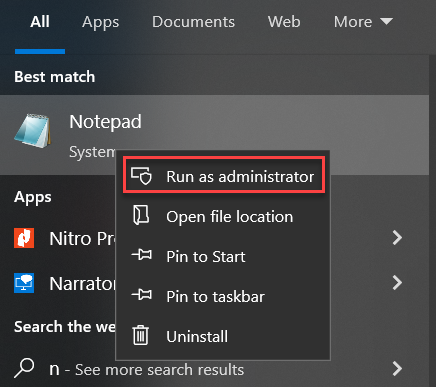
C:\Windows\System32\drivers\etc
0.0.1 example.com
Each entry should be on a new line. Use the format:
[IP Address] [Domain Name]
0.0.1 facebook.com
168.1.50 staging.example.com
0.0.1 example.com
In such a manner, you can locate and edit your hosts file in Windows 10. For more such informative articles, do visit our KB section, and for help, contact our support specialists.
Read more knowledge base about How to Edit the Hosts File in Windows, macOS, and Linux

Explore more hosting insights, tips and industry updates.
Web server software (WebServerX) is not supported. Sorry This is one of the errors that…
If you are using Squirrel mail and often encounter a disconnection problem with the SquirrelMail…
VPS is one of the most important and effective technologies in the web hosting world.…