PhpFormGenerator
To create attractive and simple web forms with a few mouse clicks, there is an…

 Serena
This guide outlines the steps to connect to a Windows Server using Remote Desktop Protocol (RDP).
Follow the steps:
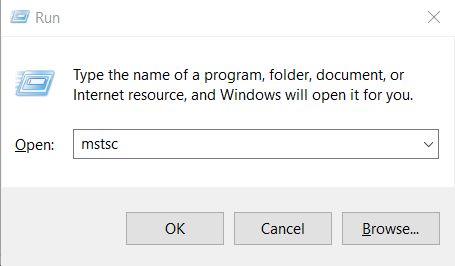
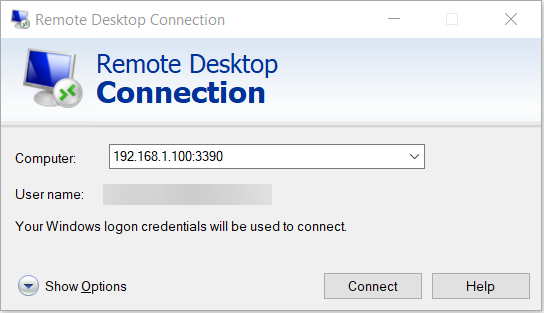
You are now successfully connected to your Windows Server via Remote Desktop and can manage it remotely.
Reach out to our support team for additional assistance.

Explore more hosting insights, tips and industry updates.
To create attractive and simple web forms with a few mouse clicks, there is an…
An Inter-Procedure Call (IPC) Socket, also known as a UNIX Domain Socket, is a special…
This post will show you how you can download the Raw Apache logs from WHM…