Installing MySQL Governor
We will clarify what MySQL Governor is and how to install MySQL Governor in this…

 Paul Lopez
A secure WordPress site protects your content, customer information, login credentials, and overall website performance from common online threats. Brute-force attacks, malware, outdated plugins, and unauthorised access are some of the common security risks WordPress websites can face.
In this guide, you will learn how to secure a WordPress website from attacks using practical security measures such as regular updates, strong passwords, two-factor authentication, SSL, backups, file permissions, and malware monitoring.
Quick Answer: To secure a WordPress website, keep WordPress and all plugins and themes updated, use strong passwords and 2FA, enable HTTPS, limit login attempts, install a trusted security plugin, maintain regular backups, use correct file permissions, and regularly scan the website for malware or suspicious activity
WordPress websites can become targets for automated attacks because attackers often scan websites for outdated software, weak login credentials, vulnerable plugins, and misconfigured files.
A security issue can result in:
Following basic WordPress security practices can significantly reduce these risks.
One of the simplest ways to protect WordPress from attacks is to keep the core software, themes, and plugins updated.
Developers regularly release updates to fix bugs, improve compatibility, and address known security vulnerabilities.
To check for available updates:
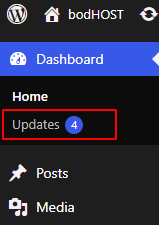
Before applying major updates, it is recommended to maintain a recent backup of your website.
Also remove plugins and themes that are no longer required instead of leaving unused software installed.
Weak usernames and passwords can make your WordPress website easier to compromise through brute-force attacks.
Avoid using predictable usernames such as admin and passwords based on your name, business name, or common words.
Use the following practices:
A strong password becomes even more effective when combined with two-factor authentication.
Two-factor authentication, commonly called 2FA, adds another verification step to the WordPress login process. Even if an attacker obtains your password, they may not be able to access the account without the second authentication factor.
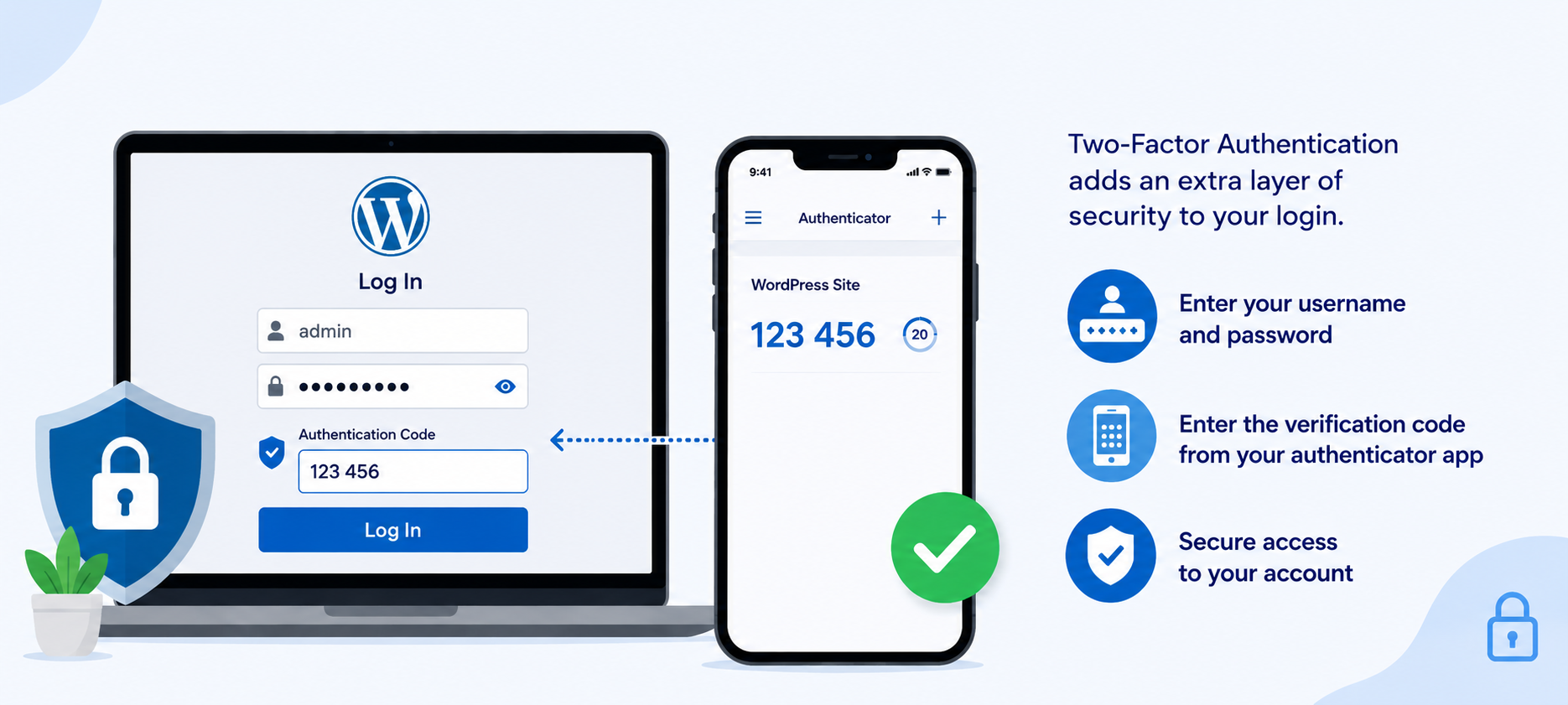
You can enable 2FA using a compatible WordPress security or authentication plugin.
The general process is:
Where possible, enable 2FA for all users with administrator-level access.
A WordPress security plugin can provide additional protection against common threats. Depending on the plugin, it may include malware scanning, login protection, firewall rules, suspicious activity detection, and other security controls.
Popular options include:
To install a security plugin:
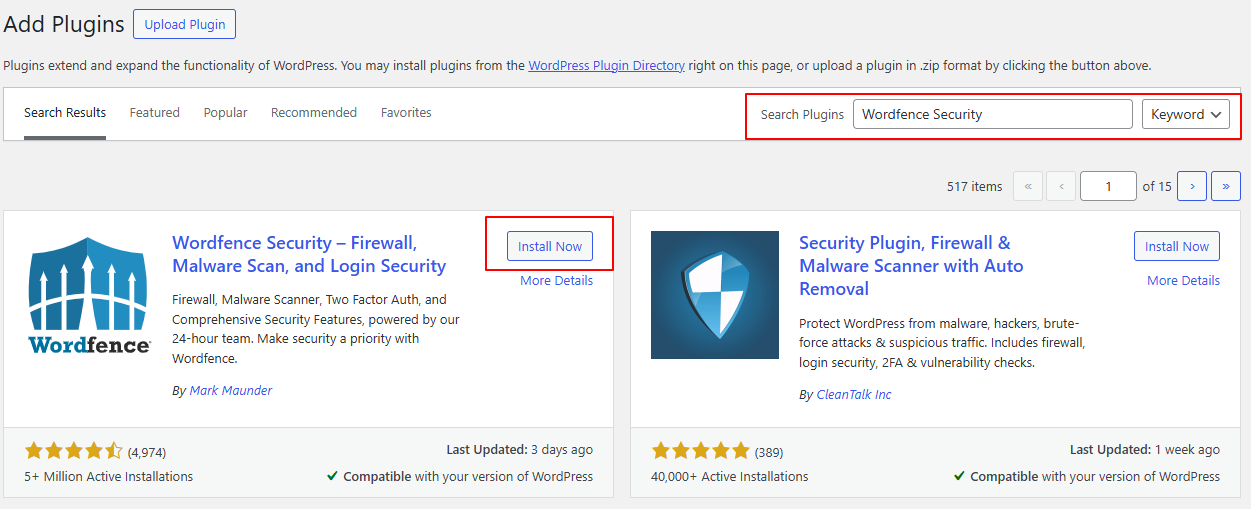
Avoid installing multiple plugins that perform the same security functions, as this can create conflicts or unnecessary resource usage.
An SSL certificate encrypts data exchanged between your website and visitors. Once SSL is configured, your website can load using HTTPS instead of HTTP.
HTTPS is especially important for websites that handle login credentials, contact forms, customer information, or online payments.
If your website is hosted with bodhost, you can use the SSL options available through your hosting environment. Bodhost hosting plans include SSL and other security features depending on the selected service.
After enabling SSL:
Brute-force attacks work by repeatedly trying different usernames and passwords until the correct credentials are found.
Limiting failed login attempts can make these attacks more difficult.
You can use a plugin such as Limit Login Attempts Reloaded or a security plugin that provides login protection.
After installing the plugin:
Avoid setting extremely aggressive limits that could lock out legitimate users.
Backups are an important part of website security. If your website is compromised, damaged, or accidentally modified, a recent backup can help you restore it.
Your backup should include:
Set automatic backups based on how frequently your website changes. A business website that receives daily updates may require more frequent backups than a website that is rarely changed.
Where possible, keep a copy of your backups separately from the website server.
Bodhost WordPress hosting plans include daily backups, while hosting services also provide backup and restore options depending on the selected plan.
Incorrect file permissions can allow unauthorised users or processes to modify important website files.
For a typical WordPress installation, commonly used permissions are:
You can check file permissions through cPanel File Manager or an FTP client.
To review them:
Do not apply overly restrictive or overly permissive permissions without understanding their impact. Incorrect changes can prevent WordPress or its plugins from working properly.
Regular malware scanning helps identify suspicious files, malicious code, and other signs of compromise.
Use the scanning feature provided by your WordPress security plugin or your hosting environment.
During a security review, look for:
If you find suspicious files or activity, avoid deleting files without first confirming what they are. Some WordPress files are required for normal website operation.
Unused software can increase your website’s attack surface, especially if it is outdated or no longer maintained.
Regularly review your WordPress installation and remove:
Only install WordPress plugins and themes from trusted sources and keep the ones you actively use updated.
Website security is not a one-time task. Regular monitoring helps you identify suspicious activity before it becomes a larger problem.
Check your website periodically for:
If your website starts redirecting visitors to unknown websites, displaying unexpected content, or showing security warnings, investigate the issue immediately.
Securing a WordPress website requires more than installing a single security plugin. Keep WordPress, themes, and plugins updated, protect administrator accounts with strong credentials and 2FA, enable HTTPS, maintain reliable backups, use appropriate file permissions, and monitor your website regularly.
These practices can help reduce the risk of brute-force attacks, malware infections, unauthorised access, and other common WordPress security threats.
If you are hosting WordPress with Bodhost, you can also take advantage of hosting-level security features such as SSL, daily backups, malware protection, and web application firewall protection.
If you need assistance with your hosting environment, SSL, backups, or other server-related security concerns, our support team is available to help. Bodhost provides 24/7 technical support to customers through its support channels.
For more infromation check our Blog: WordPress 7.0: A Complete Guide to Features, AI & Performance

Explore more hosting insights, tips and industry updates.
We will clarify what MySQL Governor is and how to install MySQL Governor in this…
Terms Relating to Web Hosting (Series U, V, W) UDP – User Data gram Protocol.…
Round-trip time (RTT) is a critical metric in networking that measures the time taken for…