

How To Manage User Roles In Plesk?
Are you searching for a way to manage roles in Plesk? If so, you’ve come…

In this article, we’ll show you how to increase the file size in the cPanel MultiPHP INI Editor.
Note - The maximum file upload size in cPanel is set to 2MB by default. This might be expanded to a more helpful value for your websites.
Let’s follow the following Procedure:
1. You need log in to your “cPanel account”
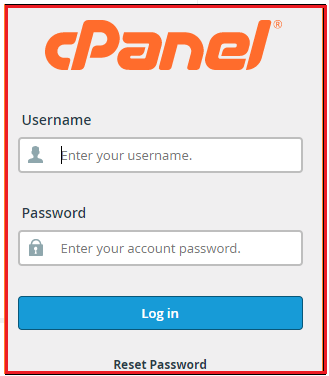
2. Now, search for the “MultiPHP INI Editor”

3. Click on the “Select the location”
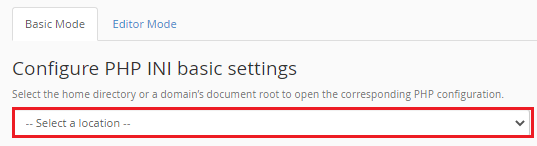
4. Now increase the size:
A. Uploade_max_filesize

B. memory_limit (This should be at least as big as post max size.)

C. post_max_size (This should be at least as big as upload max filesize.)

D. max _execution_time (This is optional, however it can help prevent timeout issues when working with huge files.)

5. Now Click to “Apply”
We sincerely hope that you must now have got a clear idea regarding How can you increase the file size In the cPanel MultiPHP INI Editor. However, if you are still facing any difficulty in the procedure mentioned above, feel free to reach out to the bodHOST Team for proactive support 24×7.
Read Also: How to Make a Single PHP Version Out of DirectAdmin?

Explore more hosting insights, tips and industry updates.
Are you searching for a way to manage roles in Plesk? If so, you’ve come…
This tutorial will teach you how to change the language of the WHM interface. The…
OpenRealty is an application developed for realtors for efficient real estate listing management. This is…