
Installing Malware Detect Software on CentOS
Today, we are going to see how to install “Maldet” on CentOS. Remember, ConfigServer eXploit…

This article will show you how to change your id address using WHM.
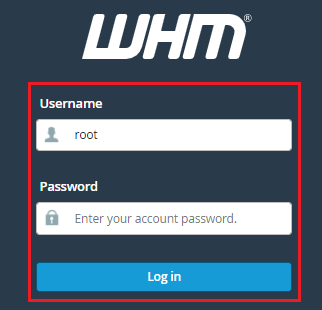
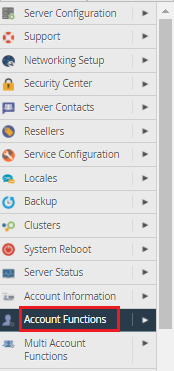
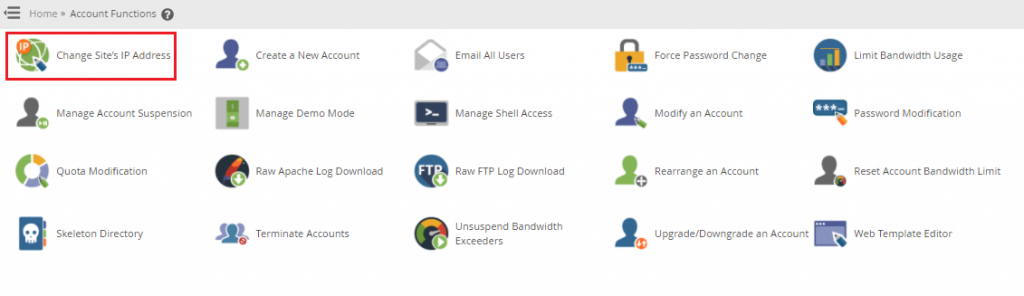
Follow the steps to change the IP address from WHM
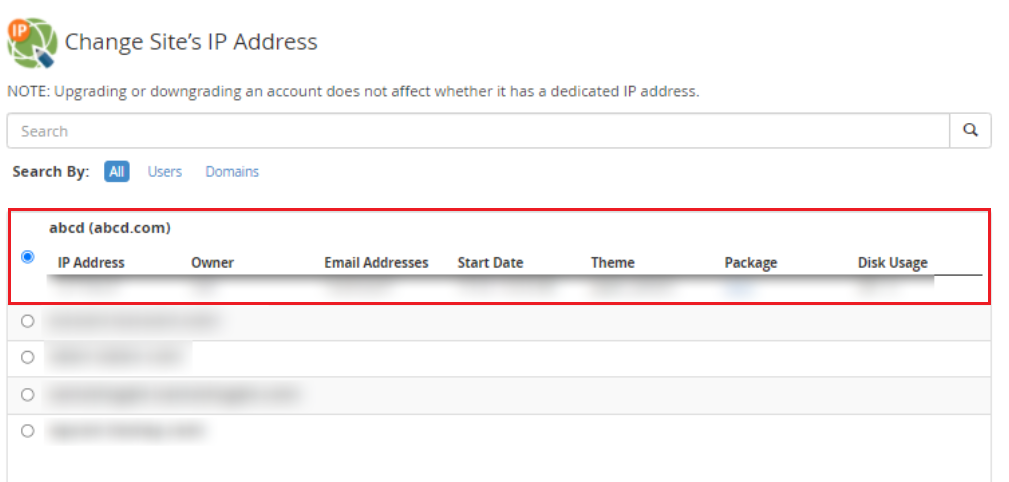
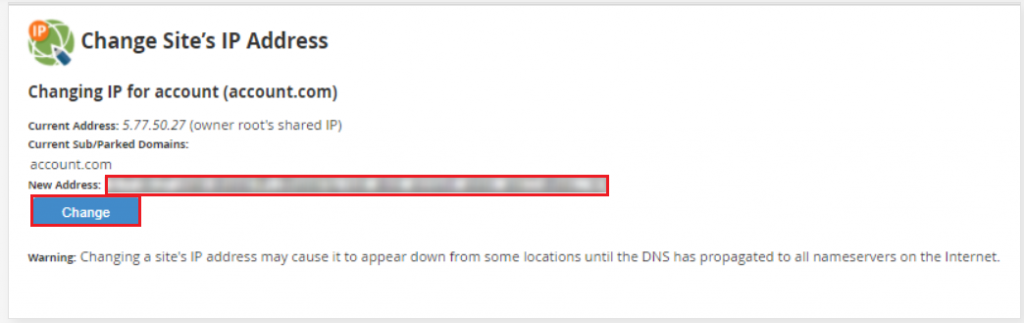
Note: When an IP address of a website is changed, it may appear down from some
locations until the change has propagated across the entire Internet.
It might take a few moments for the IP address to change.
Success! The IP address of the account has been changed.
We hope that you now have a good understanding of what API is and How to Change a Site’s IP Address from WHM. If you continue to have problems with the protocol outlined above, please contact the bodHOST for constructive assistance 24 hours a day, 7 days a week.
Also Read: How to blacklist an IP address in WHM using cPHulk

Explore more hosting insights, tips and industry updates.
Today, we are going to see how to install “Maldet” on CentOS. Remember, ConfigServer eXploit…
This guide explains, how to use cPanel to Install AbanteCart using Softaculous. Through cPanel, you…
This article covers scenarios that lead to AutoSSL returning a 404 (not found) error when…