

How to Verify Domain Ownership
To verify domain ownership in cPanel is an essential security measure. It confirms that the…


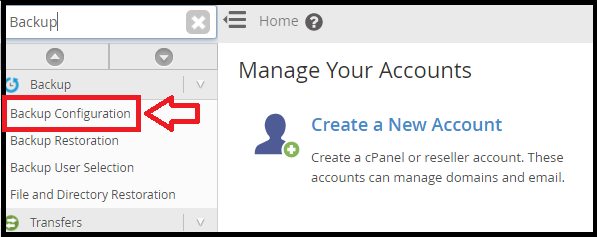
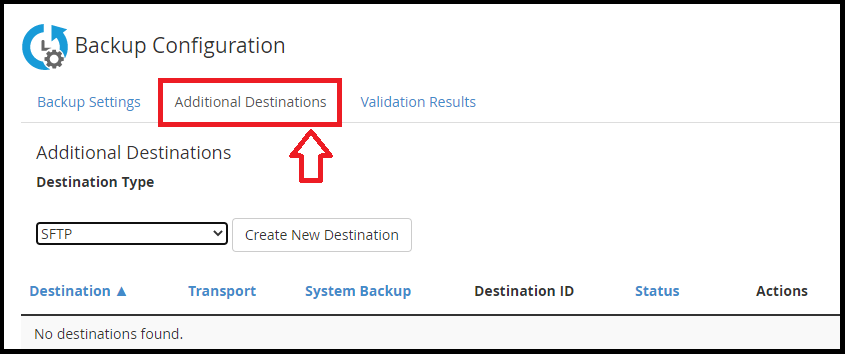
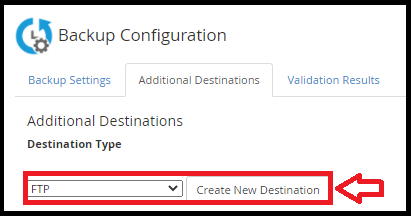
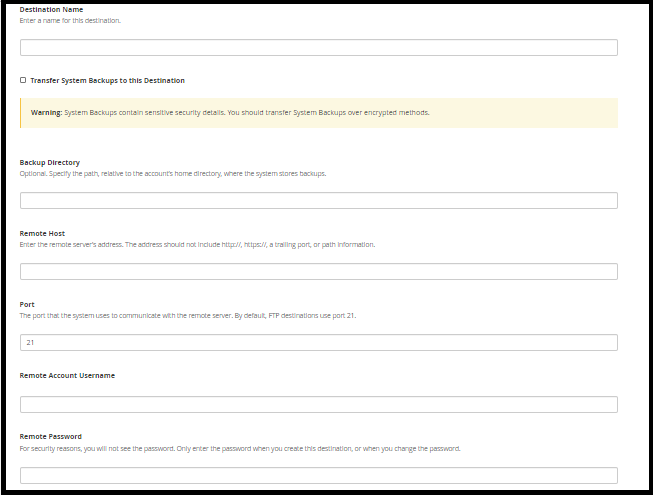
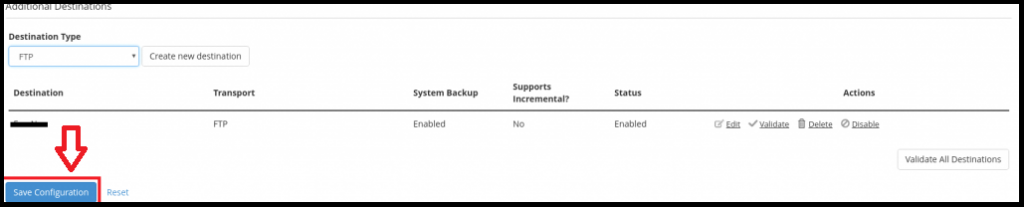
In this article, we have explained how to store backups on a remote server via FTP. If anything happens to the computer, this would help prevent backups from being lost.
A Remote Destination is a secure, off-site location where you can keep backup files for your website. A Remote Destination is usually cloud-based, which means that the files are stored on a network of remote servers for data redundancy.
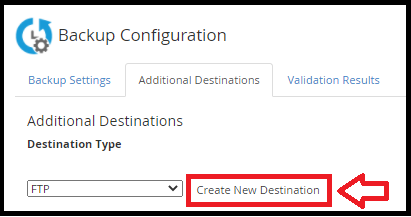
To continue, follow the Procedure.
We hope that you now have a good understanding of How to backup to a remote destination. If you continue to have problems with the protocol outlined above, please contact the bodHOST Team for constructive assistance 24×7.

Explore more hosting insights, tips and industry updates.
To verify domain ownership in cPanel is an essential security measure. It confirms that the…
Managing a Linux server often requires remote access, as nowadays servers are frequently hosted in…
You can offer reseller privileges to any user under your WHM hosting as a server…