What to Do When One or More Devices Failed Backup?
Here is the solution to solve when one or more devices fail in backup (error…

 Paul Lopez
Setting up an FTP storage backup solution using Plesk ensures off-site, scalable, and accessible backups integrated with Plesk’s automation and security features, providing a cost-effective and reliable backup strategy.
This article provides instructions on configuring the FTP storage backup solution within Plesk.
Let us follow the steps-
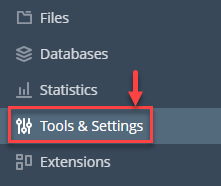
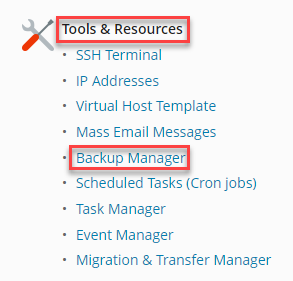
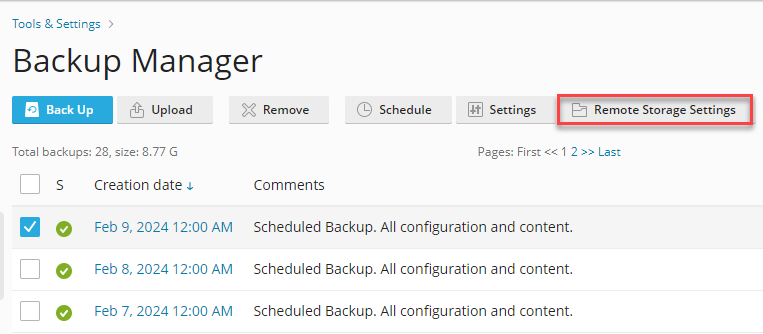
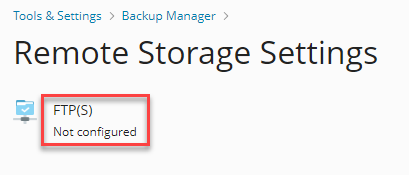
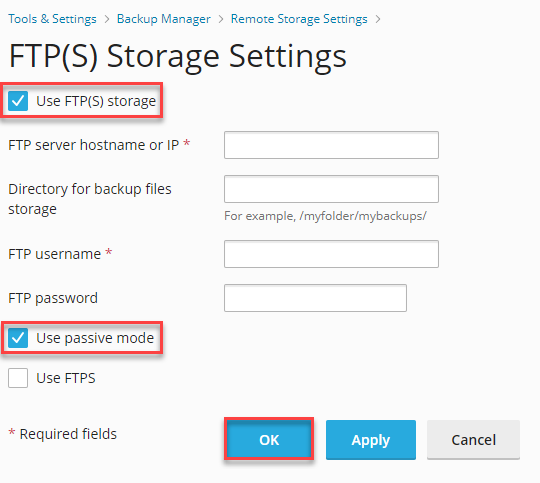
Likewise, you can establish an FTP storage backup solution using Plesk, offering a cost-effective and dependable backup strategy. Explore our website to discover our diverse hosting solutions and their benefits. Learn how to Use FTP to Create, Edit, and Remove Files.

Explore more hosting insights, tips and industry updates.
Here is the solution to solve when one or more devices fail in backup (error…
Cloud Computing and virtual networks are cost-effective ways to manage company data. In the old…
Through Nucleus, developers can create and develop highly complex and versatile applications for large organizations…