
How To Install SSL in cPanel?
In this article, You will learn what SSL is and how to upload SSL to…

 Vincer
In this article, we will explain to you the process of importing a list of email addresses in cPanel.”
NOTE: Use a . CSV File Instead of an Excel Spreadsheet
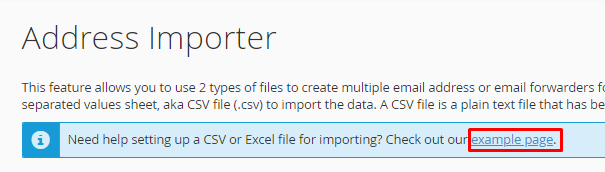
In this scenario, you can use an Excel Spreadsheet for your email content. However, for those who are not proficient with Excel, cPanel provides a simpler approach to generating a sheet using any basic text editor. Below, you will find some illustrative examples to guide you. Ensure that you save these files with a .csv extension.
For importing email addresses:
Email,Password,Quota [email protected],1234,10 [email protected],4567,8 [email protected],8910,10
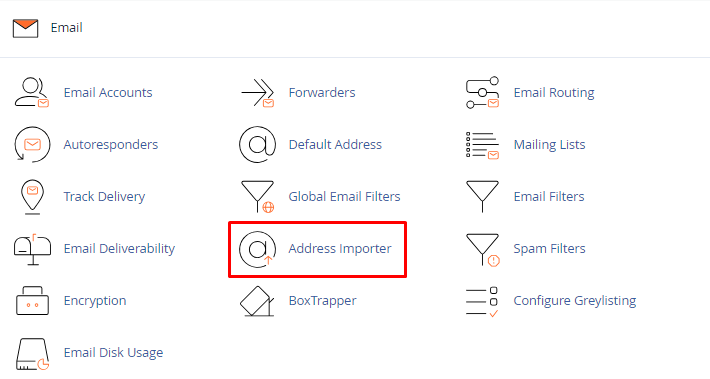
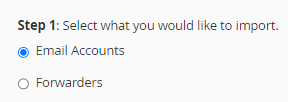
Follow the following steps to import your email account into cPanel
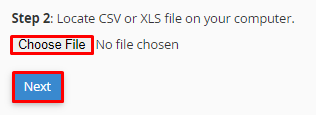
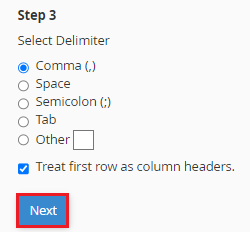
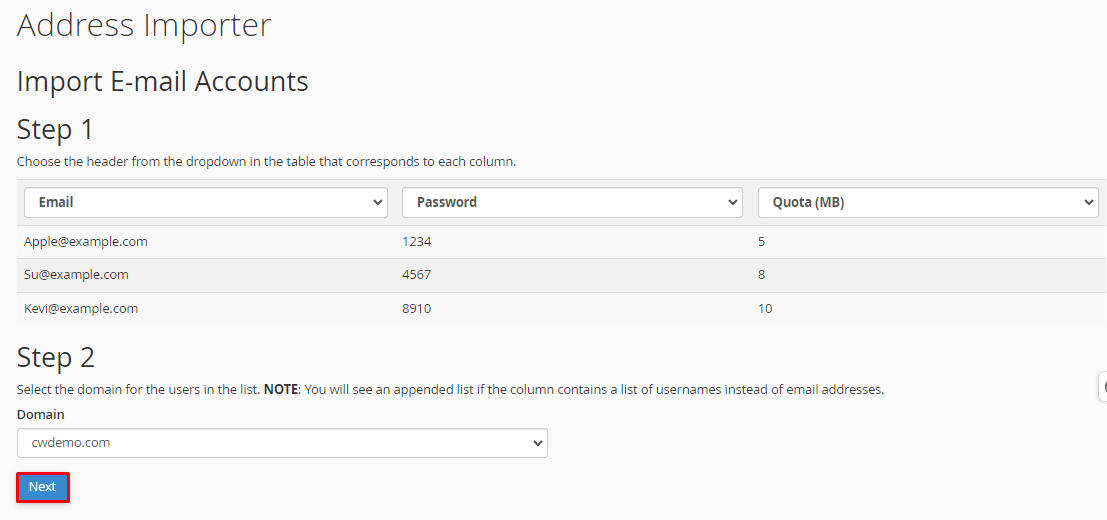
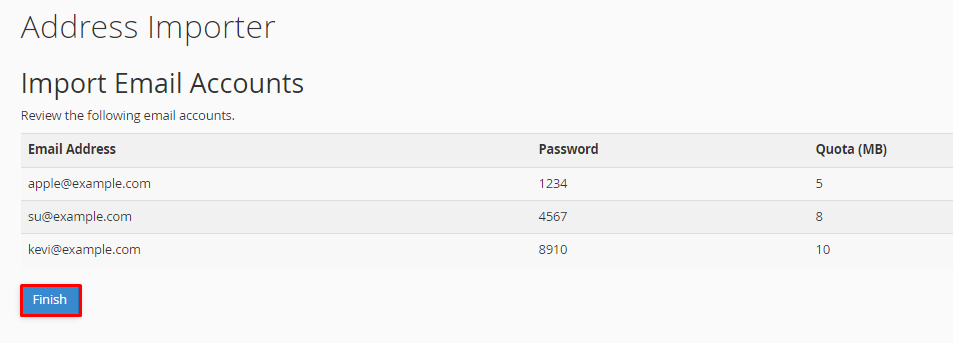
After completion, you will encounter a notification indicating a successful import. At this point, you have the option to either import more or return to your cPanel home page.
In this way, you can import email accounts in cPanel. Check out our new web hosting plans.

Explore more hosting insights, tips and industry updates.
In this article, You will learn what SSL is and how to upload SSL to…
This guide will teach you how to adjust table columns in phpMyAdmin. Users can edit,…
You will learn how to alter themes on cPanel and WHM in this article. We’ll…