
Microsoft eCommerce Dedicated Servers
Applications installed on a Windows dedicated Server also include Commerce Server. It is basically a…


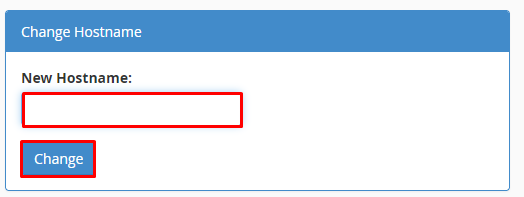
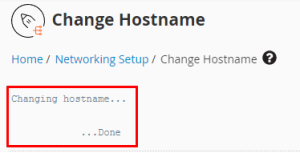
In this article, we will explain how to change your server’s hostname with the help of WHM.
Follow the following steps to Change the Hostname of the server in WHM
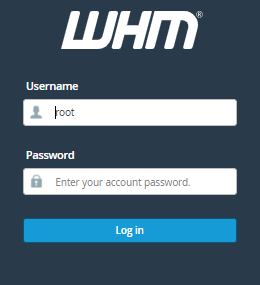
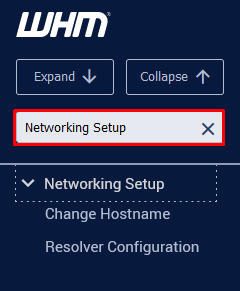
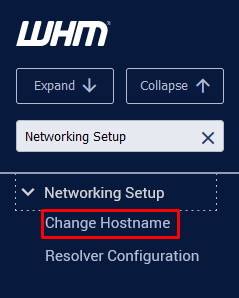
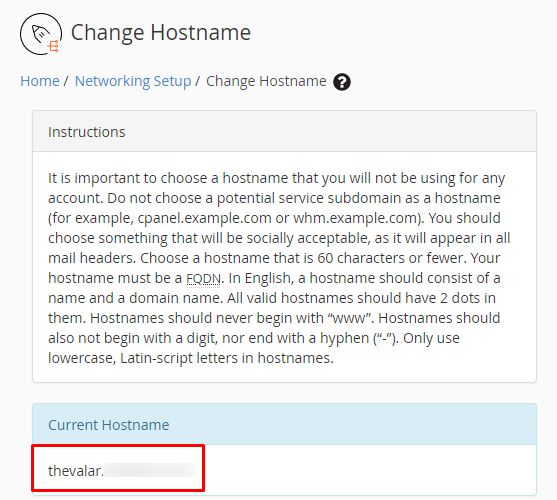

We hope that you now have a good understanding of How to Change the Hostname of the Server in WHM. If you still have problems with the protocol outlined above, please get in touch with the bodHOST Team.
You can read more about How Can You Customize a cPanel Server Using the WHM Server Profile.

Explore more hosting insights, tips and industry updates.
Applications installed on a Windows dedicated Server also include Commerce Server. It is basically a…
In this article, we have explained how to configure multiple network interfaces on Ubuntu 18.04.…
In this article, we have explained how to install Wget. It is a free and…