
Steps To Configure Your Power Panel Interface
At first, you have to log into your Virtuoso Power Panel (VZPP). Find the “configure”…


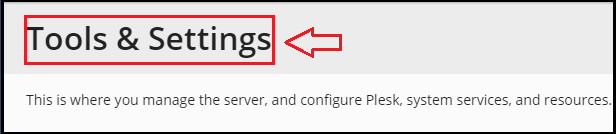
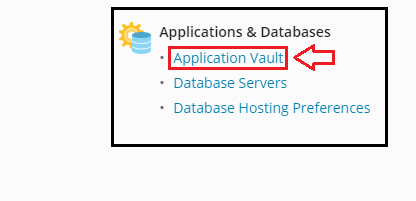
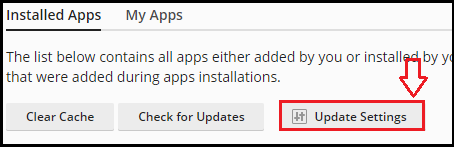
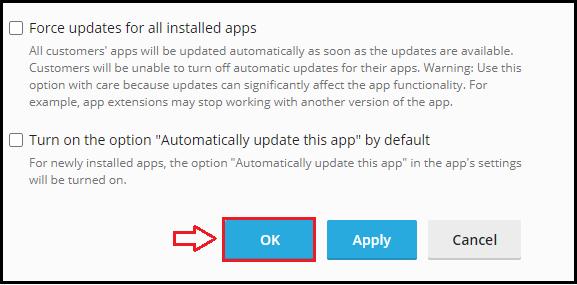
This tutorial will assist you in identifying the best way to see what apps installed in your Plesk reseller account.
With the instructions below, you can simply check the installed programs in your Plesk reseller account.

Do we sincerely hope that you now have a clear idea of how you check which apps are Installed in your Plesk Reseller Account. However, if you are still facing any difficulty in the procedure mentioned above, feel free to reach out to the bodHOST Team for proactive support 24×7

Explore more hosting insights, tips and industry updates.
At first, you have to log into your Virtuoso Power Panel (VZPP). Find the “configure”…
Killing a process in Linux from the command line is a fundamental skill for managing…
Securing your website with SSL protects data and builds user trust. In this guide, we’ll…