
How to Download a File Using curl Command
curl is a powerful command-line tool for transferring data using various protocols like HTTP, HTTPS,…

 Serena
In this guide, we will learn how to check the log of failed RDP login attempts from a Windows server. This tutorial provides detailed instructions on accessing and analyzing these logs, crucial for maintaining security and detecting potential unauthorized access.
Let us proceed with the steps-

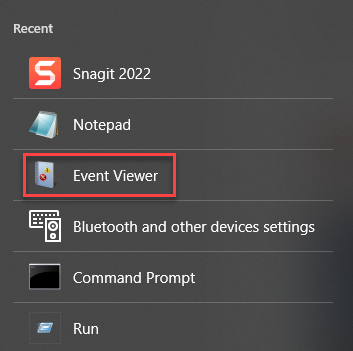
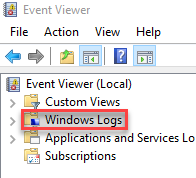
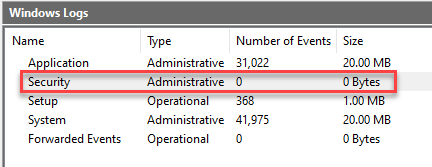
If you require any help, feel free to reach out to our support team. They are available around the clock, 24/7. You can read more about How to Change the Listening Port for a Remote Desktop.

Explore more hosting insights, tips and industry updates.
curl is a powerful command-line tool for transferring data using various protocols like HTTP, HTTPS,…
You’ve come to the right place If you want to reset your WordPress users’ passwords.…
Once you install Joomla 1.5 pn your account, you are set to add the your…