How to Fix the Error 404 not found?
As you browse the internet, you might occasionally land on a page that doesn’t load…

The Index Manager in cPanel allows you to control how a directory behaves when someone visits it directly in a browser and no default file (such as index.html or index.php) is present. You can choose whether visitors see a list of files, a limited list, or nothing at all.
Follow the steps below to configure directory indexing in cPanel:
1. Log in to your cPanel account.
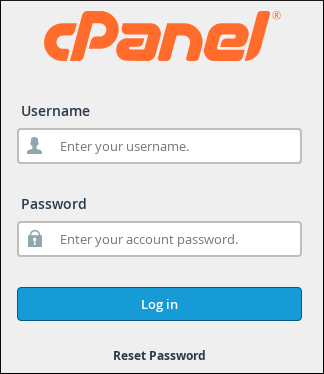
2. Open the Index Manager
In the Files section, click on the Index Manager icon.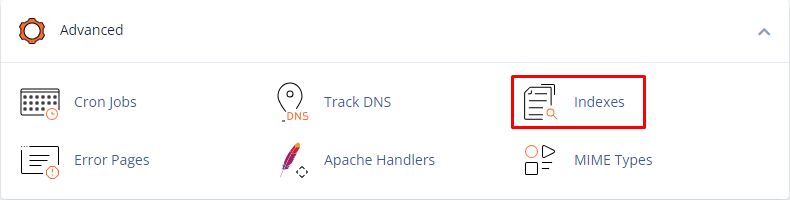
3. Select the Directory
Browse to the folder you want to configure. Once you find the correct directory, click Edit next to it.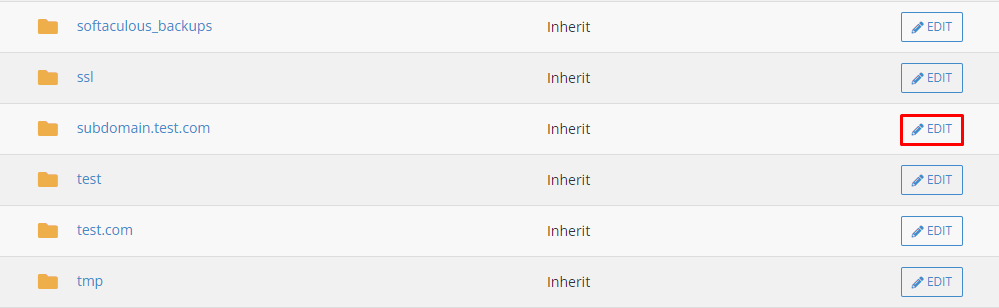
4. Choose an Indexing Option
You will see four available settings:
Select the option that best matches your needs, then click Save.
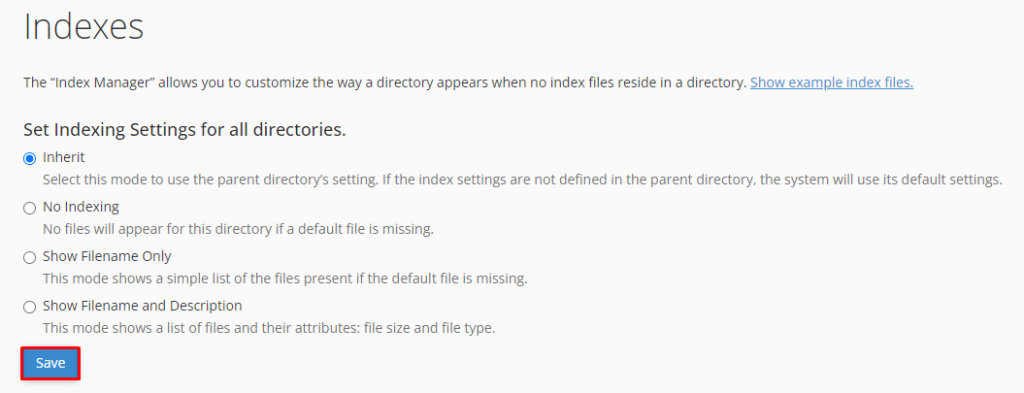
5. Confirmation
A green success message will appear once the new indexing setting has been applied successfully.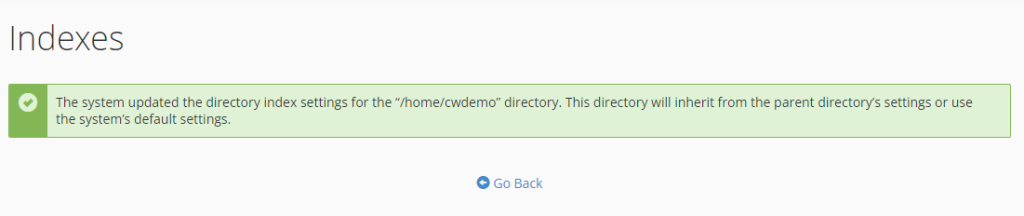
By following these steps, you can easily control how directories on your website are displayed to visitors. If you need more help with cPanel features, you can explore additional guides in the bodHOST knowledge base.
Learn more in the knowledge base about: How to Reset Your cPanel Account Password in WHM

Explore more hosting insights, tips and industry updates.
As you browse the internet, you might occasionally land on a page that doesn’t load…
You will find in this article, how to Install an SSL Certificate on your cPanel…
Add these Lines under httpd.conf file========================ServerAdmin [email protected] /home/securea/public_htmlBytesLog domlogs/secure.avmdvds.com-bytes_logServerName www.secure.avmdvds.comScriptAlias /cgi-bin/ /home/securea/public_html/cgi-bin/CustomLog /usr/local/apache/domlogs/secure.avmdvds.com-ssl_log “%t %{version}c…