How to Zip Files Using Command Prompt
This guide explains how to zip files using the command prompt. You can zip files…

 Paul Lopez
To reboot the dedicated server or VPS through WHM, follow the below-mentioned procedure:
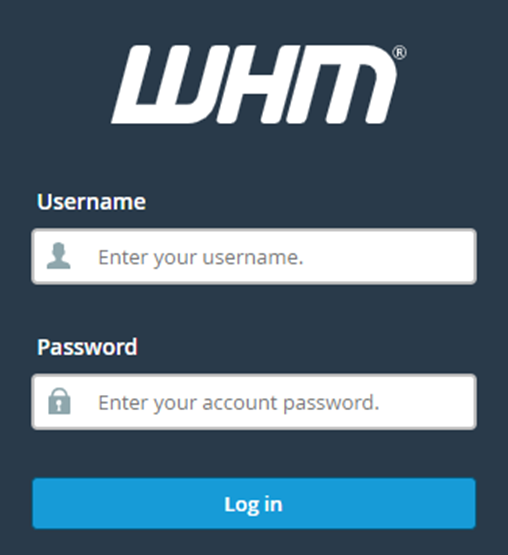
Step 1. Access your WHM with your credentials utilizing root details.
Step 2. Go to the Server Reboot tab.
Step 3. And choose one of the two options:
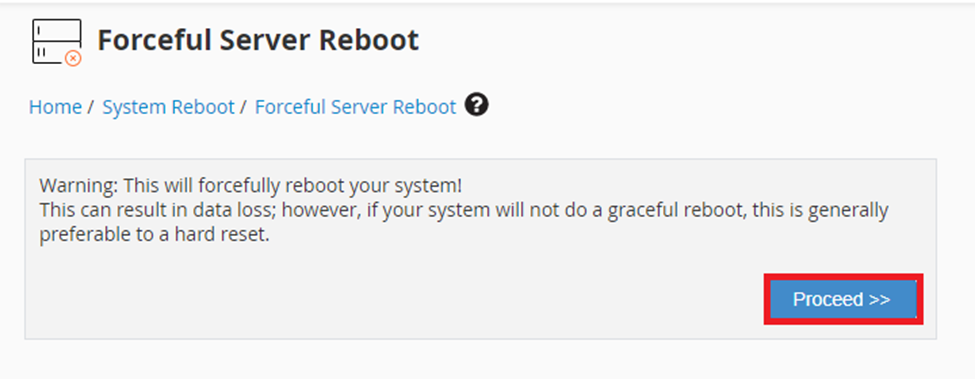
Forceful Server Reboot: This choice will reboot your computer forcibly and may result in data loss.
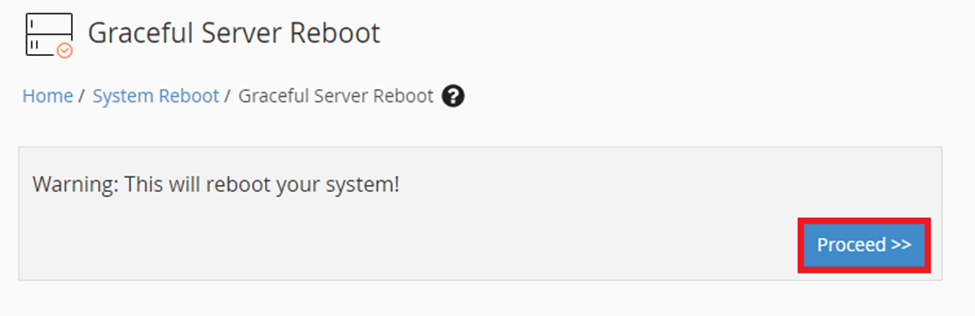
Graceful Sever Reboot: This choice will queue the reboot of the system which will prevent any data loss. Any services being provided will be paused enabling present operations to complete.
Ideally, Graceful Server Reboot is suggested. But in case there is a heavy load on the server then it may not be ideal. In such cases, you can utilize Forceful Reboot Server.
Step 4. Select the proceed option once you have made the preferred choice. Thereafter, you will get a notification of the initiation of a reboot.
The Graceful Server usually takes a couple of minutes to reboot while the Forceful Server takes about 15 minutes to reboot.
This way you can reboot the dedicated server or VPS through WHM. For more assistance, you can contact our technical support team who are available 24×7.

Explore more hosting insights, tips and industry updates.
This guide explains how to zip files using the command prompt. You can zip files…
Have you created a Certificate Signing Request (CSR)? If not then you need to create…
Read this Article, If you’re not sure how to make Horde the default time for…