How to Delete All WordPress Comments in One Go
Comments often serve as a communication platform for all your website visitors. However, due to…

 Paul Lopez
After running a database check for mistakes or errors in cPanel, the step after that is to repair the database. The server will notify you if any errors are detected. The easy ones can be repaired immediately. You can avoid having to become deeply involved in quick database fixes thanks to this capability.
You will be guided through the process of fixing a MySQL database in cPanel via this post.
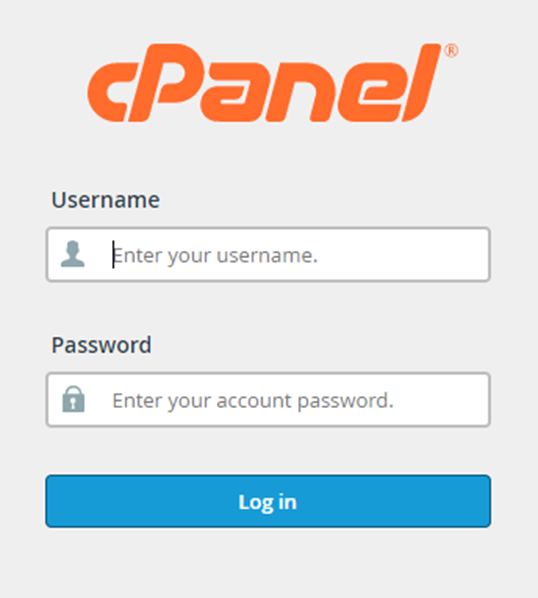
Step 1. Login to cPanel with your credentials
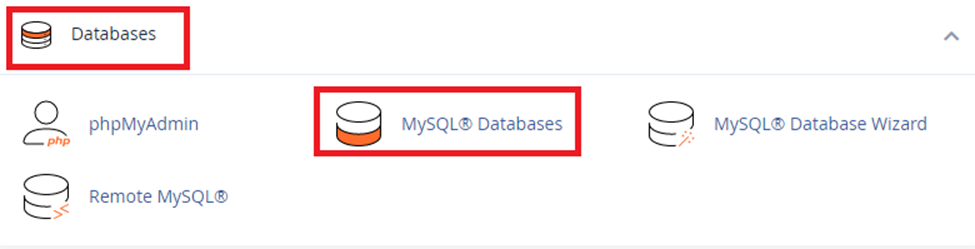
Step 2. Go to Databases and select MySQL databases.
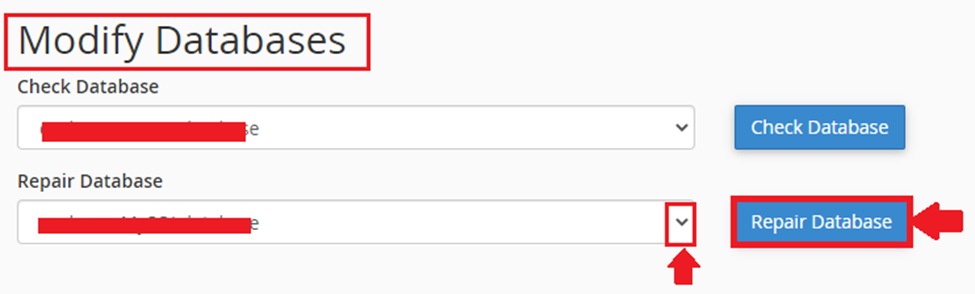
Step 3. From there got to Modify Databases and choose Repair Databases.
Step 4. Click on the drop-down menu and choose the database you want to repair.
Step 5. Now click on the Repair Database option.
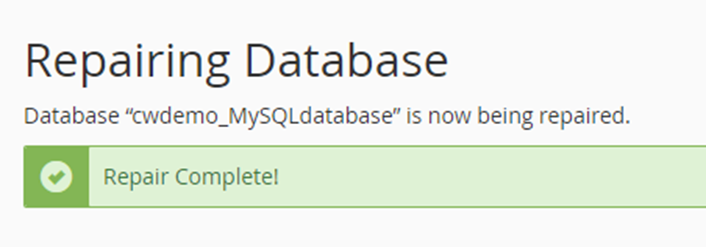
Step 6. A green confirmation notification will appear after the MySQL database has been fixed.
This post assists you in resolving elementary database issues so that you can launch your website or application. A system executive may need to check into more serious problems. Fortunately, bodHOST support staff is accessible 24/7 to assist with certain challenging MySQL database-related problems. Discover more about How to Remotely Connect to MySQL Database.

Explore more hosting insights, tips and industry updates.
Comments often serve as a communication platform for all your website visitors. However, due to…
ClamTK is a graphical front-end for ClamAV, an open-source antivirus engine designed to detect and…
This post will describe how to clear the local DNS cache from windows. Take these…