
Know More About PHPESP
If you wish to create online surveys for your business websites with complex clauses. If…


Now, It is simple to select the PHP version that your website is utilizing using the most recent versions of cPanel. You can use multiple versions across websites with the same cPanel by switching them with only a few clicks.
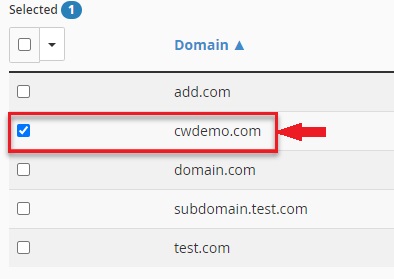
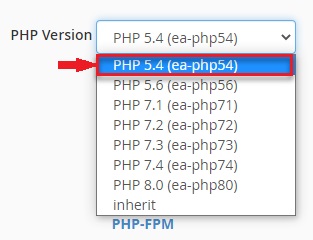
The system’s default PHP version is chosen by the system executive. Any domain that has an inherent value set indicates that the PHP version has not been specifically configured. And so, we will go over how to set the PHP version for each domain in cPanel, in this post.
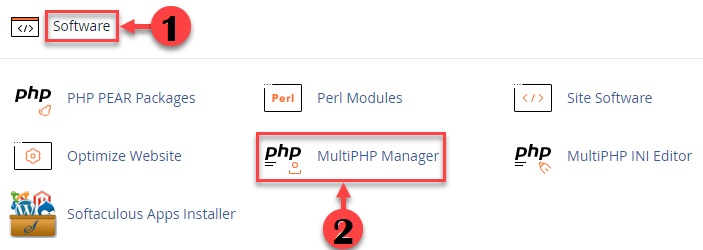
Procedure to Change the PHP version of a domain in cPanel
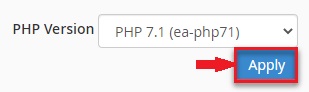
And that’s it, you have successfully managed to change the PHP version for a domain in cPanel. I hope this post was helpful and you found our content valuable. For more information and exciting deals, please visit the bodHOST page.

Explore more hosting insights, tips and industry updates.
If you wish to create online surveys for your business websites with complex clauses. If…
In this article, we will explain to you What Is Hotlink Protection and the process…
In this article, we will explain how to generate a new key SSH Access via…