
The Evolution Journey of Web Hosting Industry
Similar to the ever-increasing number of Internet users, the demand for a trusted web hosting…

 Paul Lopez
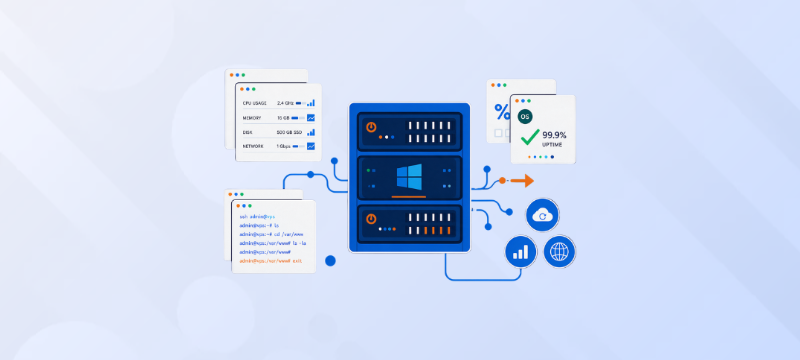
A Windows VPS gives a business the control of a private server without the full cost of owning a physical machine. It runs a Windows Server environment inside a virtualized infrastructure, with allocated CPU, RAM, storage, and bandwidth. Your team can use it for business applications, remote desktops, databases, websites, and internal tools.
For companies that depend on Microsoft technologies, a Windows VPS can be a practical middle ground between shared hosting and a dedicated server. It offers more control and steadier resources than shared hosting, while remaining easier to scale than buying and maintaining physical hardware. The right choice depends on the software you run, the access your employees need, and the amount of server administration your team can handle.
A Windows VPS is a virtual private server that runs a Windows Server operating system. The physical host may contain several virtual servers, but each VPS operates as an isolated environment with its own assigned resources and administrative access.
You can connect to the server remotely, install compatible applications, create user accounts, configure security settings, and manage websites or databases. Windows Server also includes administration tools for managing local and remote Windows-based servers from a central console.
A VPS provider maintains the underlying physical infrastructure and virtualization layer. Depending on the hosting plan, the provider may also assist with updates, monitoring, backups, security, and troubleshooting. Always check the management scope before ordering because Windows VPS plans can be managed or self-managed.
Shared hosting places many websites on one server and gives customers access to a standardized hosting environment. It is affordable and simple, but it usually limits software installation, server configuration, and resource control.
A Windows VPS gives you a separate virtual environment. You receive a defined amount of CPU, memory, storage, and network capacity. You can also install software that requires Windows Server, configure the server for a specific application, and control access for employees or administrators.
The difference is especially important when a business needs Microsoft-specific software, remote desktop access, custom permissions, or a database that cannot run properly in a basic shared hosting environment. A VPS still shares the physical host with other customers, so it is not the same as a dedicated server. However, it generally provides more control and predictable resources than shared hosting.
Shared hosting may be enough for a small brochure website, a simple blog, or an early-stage project with modest traffic. A Windows VPS becomes more suitable when the business has requirements that shared hosting cannot meet.
You may need a Windows VPS when:
Moving to a VPS is not only a response to slow performance. It can also be a way to gain better control over security, deployment, user access, and future growth.
A Windows VPS can support day-to-day operations as well as customer-facing services. Its value comes from combining a familiar operating system with dedicated virtual resources and remote access.
Many businesses choose Windows VPS hosting because their applications are built for the Microsoft ecosystem. A Windows environment can support technologies such as Internet Information Services (IIS), ASP.NET, Microsoft SQL Server, and other Windows-compatible applications. bodHOST also lists support for IIS, ASP.NET, PHP, and MSSQL on its Windows VPS service page.
This compatibility can reduce the need to redesign an existing application for a different operating system. It also gives your administrators a familiar interface and access to Windows Server tools.
Before choosing a plan, confirm the software licensing requirements, supported Windows Server version, database edition, and hardware resources required by the application. Compatibility alone does not guarantee good performance if the VPS is undersized.
A Windows VPS gives you greater control over user accounts, permissions, firewall rules, remote access, and installed services than basic shared hosting. You can limit administrative access, remove unnecessary software, apply security policies, and monitor server activity.
This does not make the server secure automatically. Your team or hosting provider must still apply security updates, use strong passwords or multi-factor authentication where available, restrict exposed ports, and maintain tested backups. A secure physical data center cannot compensate for a poorly configured server.
A small business may begin with a lightweight plan and increase CPU, RAM, storage, or bandwidth when its application or user base grows. This is usually simpler than replacing a physical server or moving immediately to a larger infrastructure platform.
Resource upgrades are useful when a database grows, more employees connect remotely, or a customer-facing application receives more traffic. Ask the provider whether upgrades require a reboot, whether the plan can be changed without migration, and whether additional resources are available at the next stage.
Remote Desktop access lets authorized employees connect to a Windows environment from different locations. They can use approved applications, work with shared files, or access tools that are not installed on their personal devices.
Remote access must be configured carefully. Use individual accounts, strong authentication, restricted access rules, and monitoring. Do not expose administrative services to the public internet without a clear security plan. Microsoft also provides tools for managing Windows Server machines remotely, which can reduce the need for direct physical access.
A Windows VPS can support remote work, but it should not be treated as a replacement for a complete identity, endpoint, and access-control strategy.
With your own virtual server, you can plan when to apply Windows updates, application patches, database changes, and configuration adjustments. This gives your team more control than a shared environment where the provider determines most server-level changes.
A controlled update process should include a backup, a maintenance window, testing where possible, and a rollback plan. Businesses should avoid delaying important security updates indefinitely. If your team does not have time to monitor patches and resolve update problems, managed Windows VPS hosting may be a better fit.
A dedicated server gives one customer exclusive access to physical hardware. That arrangement can deliver higher capacity and stronger isolation, but it usually costs more and may require a longer provisioning or upgrade process.
A Windows VPS provides virtualized resources at a lower entry point. It can be a sensible option when the business needs more than shared hosting but does not yet require the full capacity of a dedicated server. Upgrade to dedicated infrastructure when sustained resource demand, compliance requirements, or performance isolation justify the additional cost.
The server specifications matter, but service quality can affect the business just as much. Review the provider’s support boundaries, backup policy, upgrade process, and data-center options before comparing monthly prices.
Look for support that can distinguish between a network issue, an operating system problem, and an application configuration error. Confirm whether assistance includes Windows updates, firewall rules, control panels, migrations, backups, and recovery.
A provider may advertise 24/7 support but offer different response times or service levels for different plans. Ask what happens if the server is unreachable at night or an update prevents an application from starting.
Compare the complete monthly cost rather than the promotional headline. Check whether Windows licensing, backups, control panels, extra IP addresses, monitoring, security tools, and support services are included.
Also review renewal pricing, resource upgrade charges, bandwidth limits, and cancellation terms. Clear pricing makes it easier to forecast the cost of running a business application over several years.
Backups should be part of the decision, not an afterthought. Ask how often backups run, how long they are retained, where they are stored, and whether you can restore individual files, databases, or the full VPS.
A backup is useful only if it can be restored. Test recovery procedures before a serious incident and keep a copy outside the primary server environment when possible.
Moving a Windows application can involve databases, DNS records, SSL certificates, scheduled tasks, user accounts, file permissions, and licensing. Ask whether the provider assists with migration and whether the service includes testing after the move.
A written migration plan should identify the source server, target environment, backup point, testing window, DNS change, and rollback option. This reduces the chance of an avoidable outage.
The right time to upgrade is usually visible in a combination of technical and business signals. Repeated slowdowns, memory pressure, long database queries, application errors, or rising support tickets may indicate that the current plan is no longer sufficient.
Look at performance trends rather than reacting to one temporary spike. Review CPU usage, available memory, storage consumption, database growth, response times, and traffic patterns. If the VPS regularly reaches its limits during normal business activity, additional resources may improve stability.
Compare more than the hosting invoice. Include the cost of employee downtime, lost transactions, emergency support, backup storage, software licenses, maintenance time, and migration work.
A larger VPS may be the most economical option if it prevents recurring outages. On the other hand, a dedicated server or cloud architecture may be more appropriate when the workload has outgrown a single virtual machine. The best upgrade is the one that solves the current constraint without adding unnecessary complexity.
A Windows VPS can give a business the compatibility of Windows Server, more control than shared hosting, and a lower starting cost than dedicated hardware. It can support Microsoft applications, remote work, growing databases, customer-facing websites, and internal business systems.
The best plan is not simply the one with the most CPU or storage. Review the provider’s support, backup, migration, control-panel, and upgrade policies as carefully as the specifications. For businesses looking for managed Windows VPS hosting, bodHOST offers Windows Server environments with options such as Plesk, Remote Desktop access, scalable resources, SSD storage, and multiple data-center locations.
Choose a Windows VPS when your applications need a Windows environment, and your business needs more control or capacity than shared hosting can provide. Upgrade only when performance data, operational risk, or business growth shows that the current setup is no longer enough.
For more information, read the blog: How Windows Shared Hosting Simplifies Website Management

Explore more hosting insights, tips and industry updates.
Similar to the ever-increasing number of Internet users, the demand for a trusted web hosting…
VMware has the new version 5 of the operating system vSphere announced. It serves to…
In this article, let us review some interesting workarounds with the “s” substitute command in…