How To Manage DNS Zone Editor in cPanel
In this article, we will explain how to use the DNS zone editor in cPanel.…


 Paul Lopez
Copying files between directories is a common task for Windows users. While the graphical interface (GUI) is user-friendly, using Command Prompt (CMD) can be faster and more efficient, especially when dealing with multiple files or automating tasks.
This guide will walk you through the steps to copy files from one directory to another using CMD.
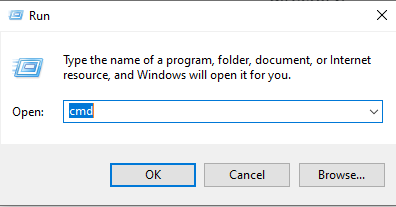
Press Win + R, type cmd, and press Enter.
Alternatively, search for “CMD” in the Start menu and choose Run as Administrator if you’re copying to system directories
like C:\.
Use the cd command to change to the directory where your file is located.
cd path\to\your\source\folder
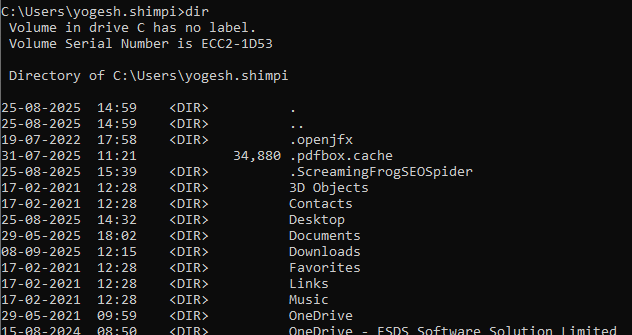
Type dir to list all files in the current directory.
dir
Run the following command to copy a file:
copy filename.ext destination\path
Example:
copy report.txt D:\Backup
Step 1: Open CMD as Administrator
Step 2: Use the xcopy Command
xcopy source\path destination\path /s /e
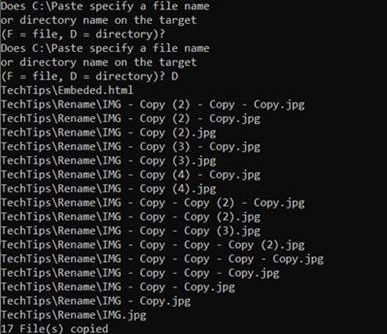
Example:
xcopy C:\Projects D:\Backup\Projects /s /e
| Option | Description |
| /s | Copies directories and subdirectories except empty ones |
| /e | Copies all subdirectories, including empty ones |
| /v | Verifies each file after copying |
| /c | Continues copying even if errors occur |
| /h | Copies hidden and system files |
| /r | Overwrites read-only files |
| /z | Enables restartable mode for network copying |
| /f | Displays full source and destination file names |
| /? | Displays help for the command |
Using CMD to copy files is a powerful method for managing data efficiently. Whether you’re copying a single file or an entire directory structure, CMD offers speed, flexibility, and automation capabilities that GUI methods can’t match.
By mastering these commands, you can streamline your workflow and handle bulk file operations with ease.
Learn more knowledge base on How to Use CMD to Mount a Remote File System on Windows

Explore more hosting insights, tips and industry updates.
In this article, we will explain how to use the DNS zone editor in cPanel.…
Summary: It may be that you are trying to use an .htaccess file on your…
In this article, you will find the procedure of Customizing the version of the MySQL…