
What is the Best Way to Make a Blog Post for your WordPress Website?
We’ll show you how to make a blog post for your WordPress website in this…

 Paul Lopez
To Enable or Disable PHP Extensions in cPanel is a very common task when you are running WordPress, Laravel, or any PHP-based application. Some plugins and frameworks require specific PHP extensions to function properly, while others may conflict with unused modules.
In this guide, we will show you how to enable or disable PHP extensions in cPanel using simple, beginner-friendly steps.
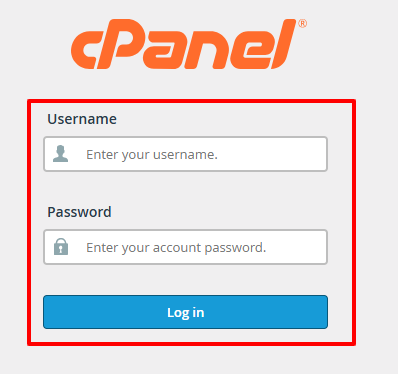
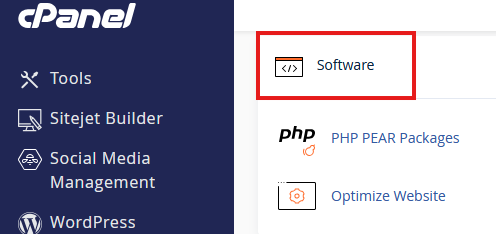
To enable or disable PHP extensions in cPanel, log in to cPanel, open Select PHP Version, choose your PHP version, go to the Extensions tab, and check or uncheck the required modules. The changes apply instantly and do not require a server to restart.
PHP extensions are libraries that add extra functionality to PHP. Without the required extensions, your website may show errors, fail to load features, or break completely.
Common use cases:
Keeping only required PHP extensions enabled helps improve performance, security, and stability.
Before making changes, it is always good to verify which extensions are already active.
Steps:
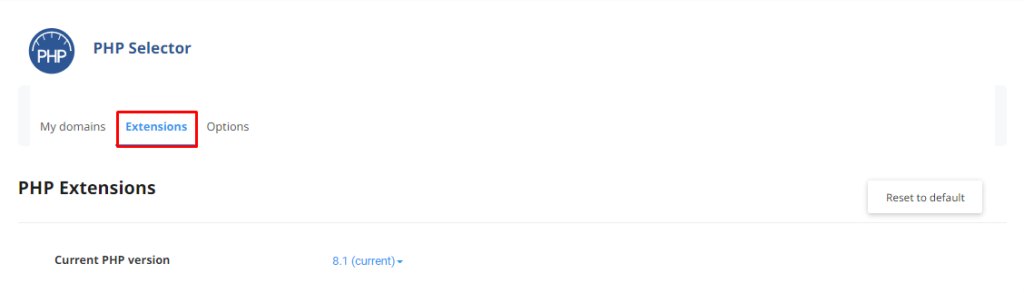
You will see a list of PHP extensions with checkboxes indicating their status.
This is the most commonly used method on Cloud Linux servers.
Tip: No server restart is required. Changes take effect instantly.
This method allows you to manage PHP versions per domain.
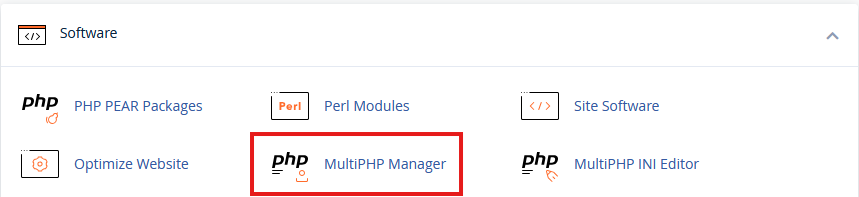
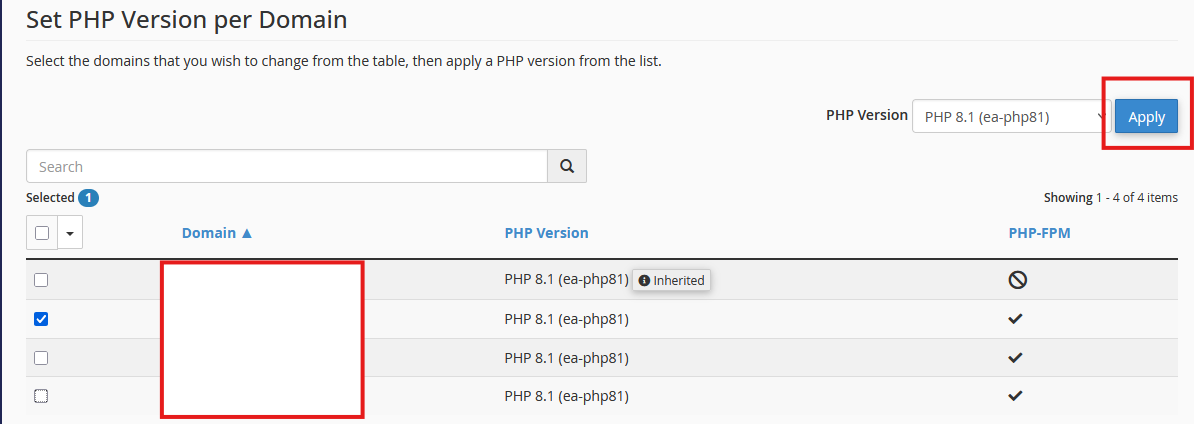
To manage extensions after this, return to Select PHP Version and update extensions accordingly.
You can refer to the following guide: How to check the PHP version & configuration in cPanel
| PHP Extension | Purpose |
| mysqli | Database connectivity |
| curl | API and external requests |
| mbstring | Multibyte string handling |
| zip | File compression |
| json | Data exchange |
| openssl | Secure encryption |
Managing PHP extensions in cPanel is a simple yet powerful way to optimize your website’s performance and compatibility. Whether you are enabling a required module or disabling unused ones, cPanel gives you full control without touching the command line.
If you are unsure which PHP extensions your website needs, the bodHOST support team is always here to help.
If this helped, Read More about our other knowledgebase: How to resolve Image Upload issues in WordPress

Explore more hosting insights, tips and industry updates.
We’ll show you how to make a blog post for your WordPress website in this…
In this article, we will explain to you What Is Hotlink Protection and the process…
This guide explains how to create a Global email filter in cPanel. Setting a Global…