How Can you Increase the File Size In the cPanel MultiPHP INI Editor?
In this article, we’ll show you how to increase the file size in the cPanel…


This tutorial will show you how to use a process manager in WHM to track a process. The process manager assists you in locating a process’s ID (Pid), owner, priority, CPU percentage, memory, and command.
Note- To use the process manager, you must be a root user.
Follow the steps below:
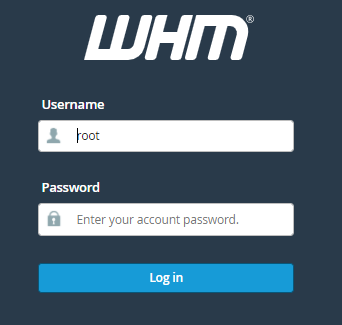
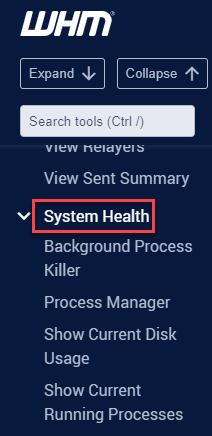
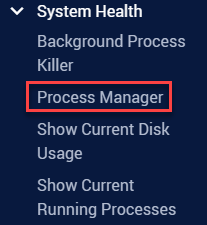
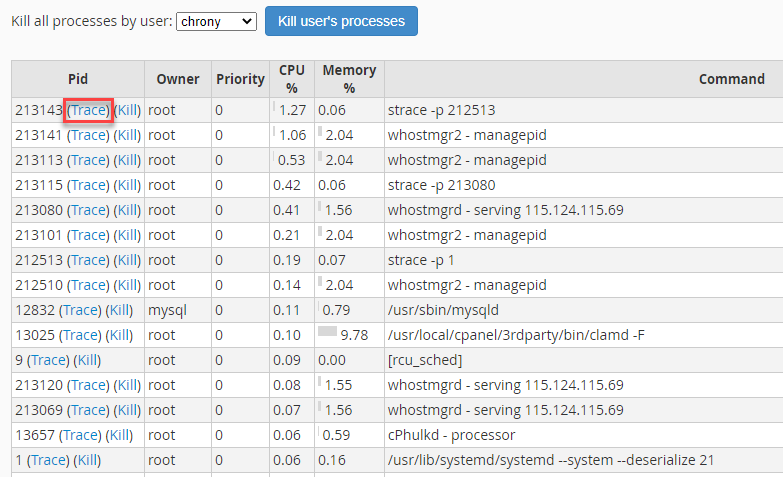
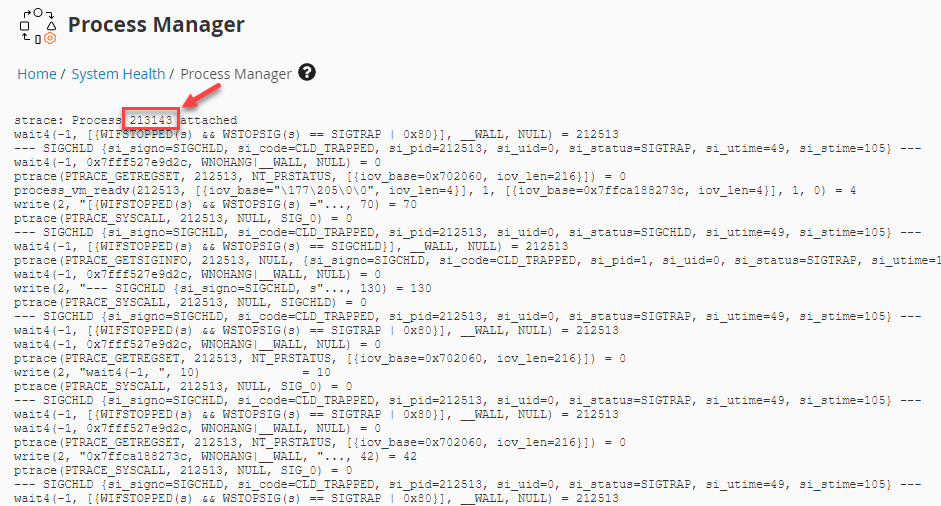
In this manner, you can trace a process using a process manager in WHM. You can contact bodHOST support staff for any queries, they are available for you 24×7. Also, don’t miss out on our latest web hosting plans.

Explore more hosting insights, tips and industry updates.
In this article, we’ll show you how to increase the file size in the cPanel…
What type of hardware will my VPS be hosted on? The hardware for your VPS…
curl is a powerful command-line tool for transferring data using various protocols like HTTP, HTTPS,…