
How To Force Your Site Visitors to Use Shared SSL Connection
From time to time, our technical support department is asked how to direct website visitors…

This article will show you How to Upload a File Using the cPanel File Manager.
Uploading a file to your account is simple with the cPanel File Manager. This is sometimes required, for example, when attempting to verify ownership of the site for Google Search Console. If you are not familiar with the cPanel File Manager, please read our article on Using the cPanel File Manager.
Follow the following example, and understand the steps.
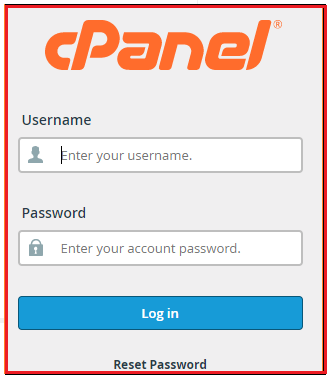
1. You need to log into your “cPanel account”
2. Click on the “File Manager”

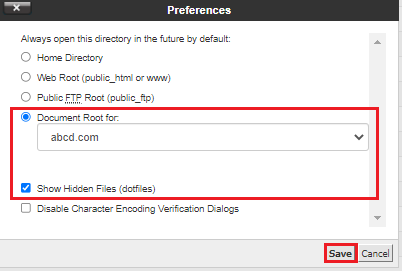
3. Next, select the folder in which you want to begin.
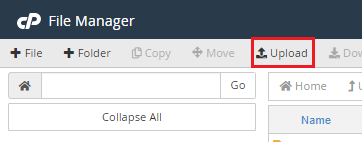
4. Choose “Upload” from the top icons.
5. Click the “Select File” button to navigate to the file you want to upload on your local computer.
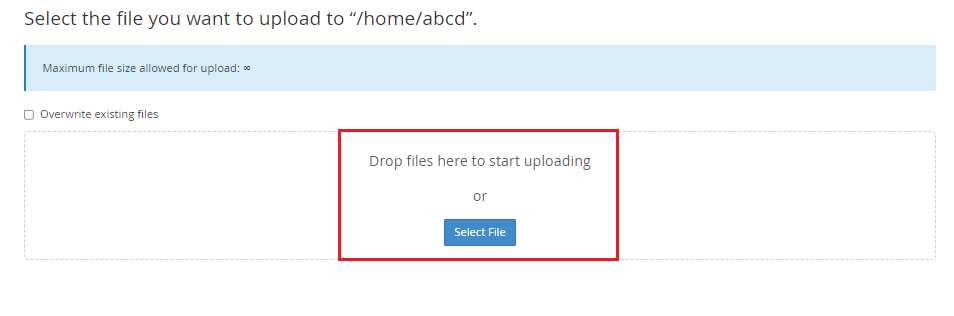
6. Select the file and press the Open button. When the file has finished uploading, click the link in the center of the screen to return to the folder where it was uploaded.
Congratulations, you now understand how to upload a file using cPanel File Manager. More tutorials to help you build a successful website can be found on our cPanel Education Website.
Read More: Update a Website Using Git™ Version Control in cPanel

Explore more hosting insights, tips and industry updates.
From time to time, our technical support department is asked how to direct website visitors…
It was developed by Werner Almesberger and was thereafter developed by the latest developer, John…
In this tutorial, we’ll explain how you can map MySQL databases and users to cPanel…