
How to Edit the Hosts File in Windows, macOS, and Linux
In this guide, you will discover how to easily edit the host file across Windows,…

In this article, we have explained how to reset the admin account password for Softaculous applications from cPanel.
Let us follow the steps to reset the admin account password using Softaculous :
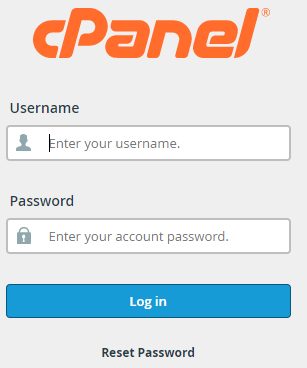
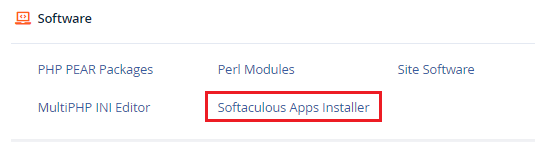
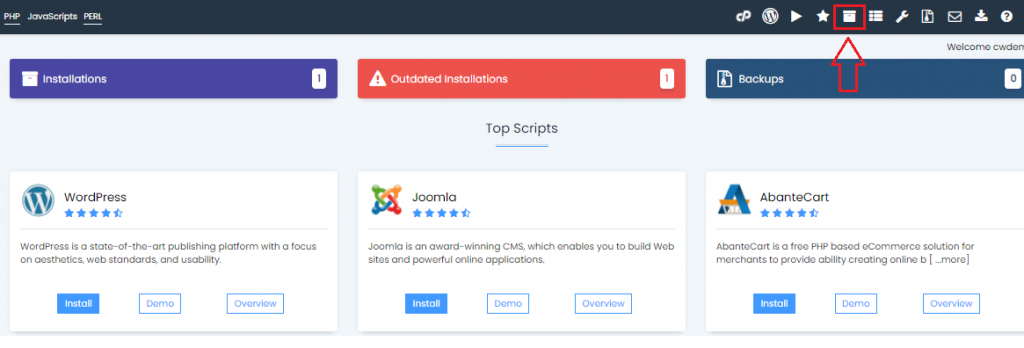

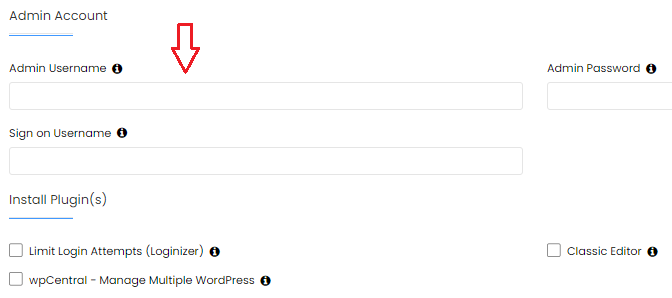
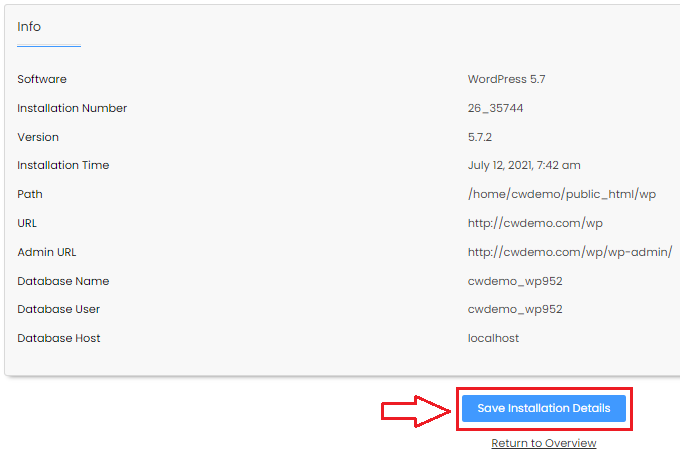
This way you can reset the admin account password for Softaculous applications from cPanel. For more information on Softaculous visit our website.

Explore more hosting insights, tips and industry updates.
In this guide, you will discover how to easily edit the host file across Windows,…
1- How to install CloudFlare CDN on my domain? Ans: To activate the CloudFlare CDN,…
EasyApache 4 Migration can be used in cPanel or WHM version 58 or higher. Pre-requisites…