How to add FTP Account in Plesk

You’ll learn how to add an FTP account in Plesk for each user in this tutorial.

To create a new FTP account in Plesk, follow these steps:
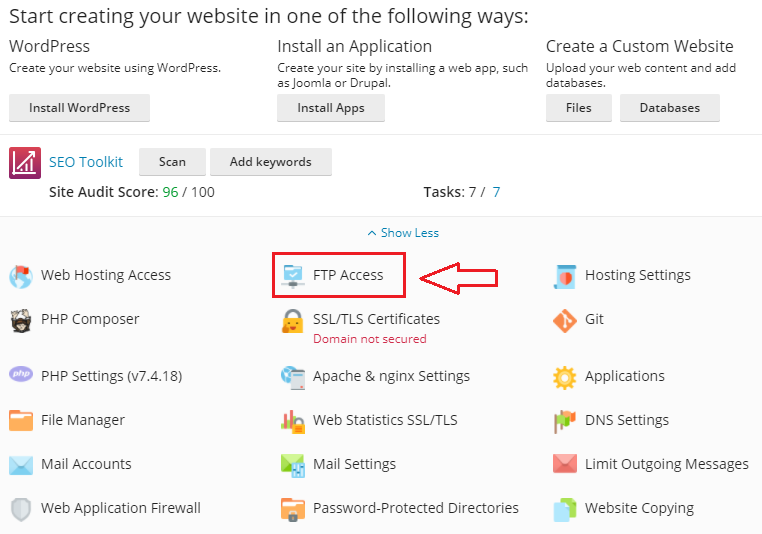
  1. From the Websites & Domains menu, choose FTP Access.
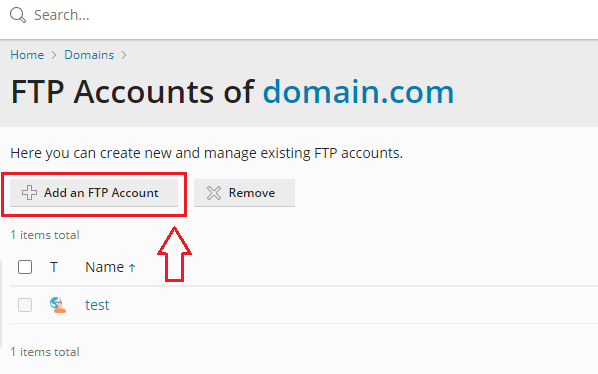
  2. Select Add FTP Account from the drop-down menu.

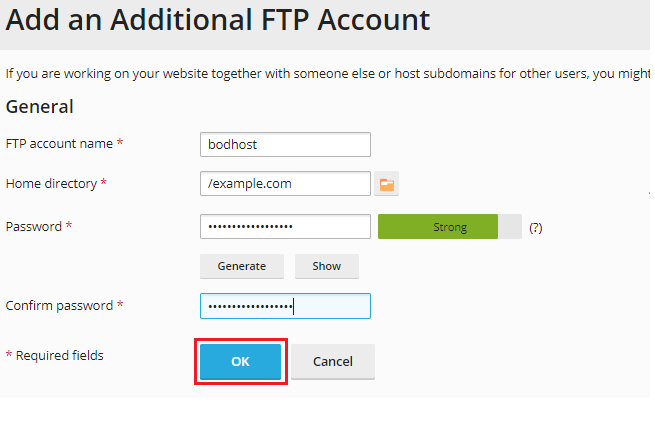
    It displays the following:
  3. Fill up the blanks with the chosen FTP name.
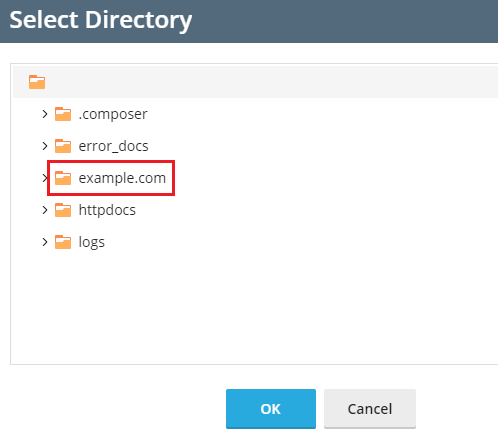
  4. Choose the directory to which the user will be sent when he or she connects to the FTP account. Password for FTP.
  5. Password: Enter the password or have it generated by the system. Confirm it once again.
  6. Click OK.
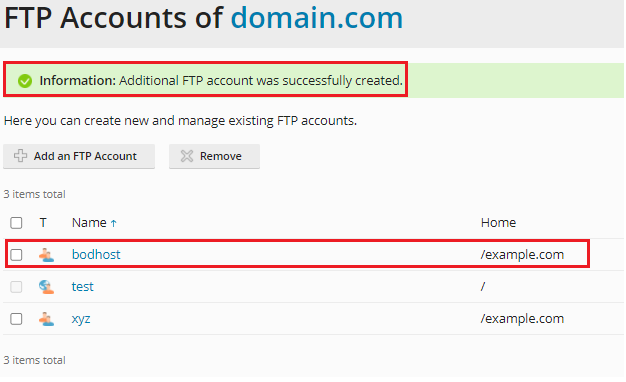
  7. You will receive a success message and be able to see your new FTP account after clicking the ok button.

In such a way you can add FTP account in Plesk. Don’t forget to check our Knowledge Base area for regular updates. If you require any extra assistance, please contact bodHOST team now.

Popular Posts You May Read

Explore more hosting insights, tips and industry updates.

What is a URL Redirect and How does it Function

What is a URL Redirect and How does it Function

In this article, you will discover what is a URL redirect and how it works.…

Installatron in cPanel/WHM: Features, Supported Panels, and Installation Guide

Installatron is a popular web application installer used on hosting servers to simplify deploying and…

How to Line up FTP Storage Backup Solution using Plesk

Setting up an FTP storage backup solution using Plesk ensures off-site, scalable, and accessible backups…