How to Automatically Block or Disable a Potential Spammer
Users who are identified as potential spammers may have their outgoing mail automatically blocked or…

 Paul Lopez
If you are trying to resolve WordPress image upload issues, then you’re not the only one facing this. Many WordPress users suddenly find that their images stop uploading, show random errors, or simply refuse to appear in the Media Library. It can get irritating, especially when you’re updating a blog post, product page, or designing something important.
This guide takes you through the most common WordPress image upload issues and shows you how to resolve them with simple steps.
Before jumping into the solution, it’s helpful to understand why the upload fails. Some of the common reasons include:
Let’s go through each problem and solve it one by one.
Incorrect file permissions are among the top reasons your images fail to upload. If WordPress cannot write to the uploads folder, you will get errors like:
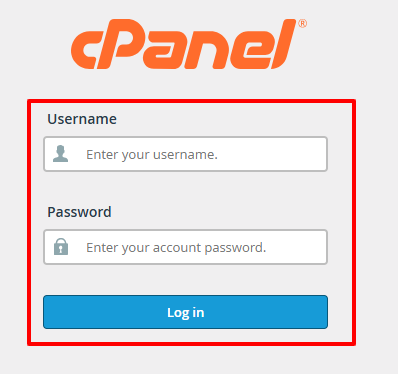
1. Log in to cPanel or connect using FTP.
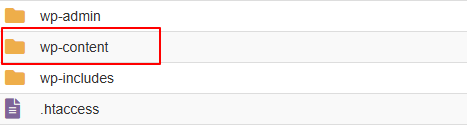
Open the wp-content folder.
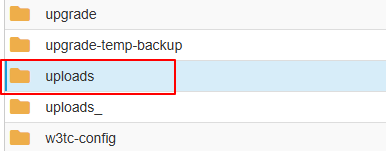
Select the uploads folder.
Set permissions to 755 for folders and 644 for files.
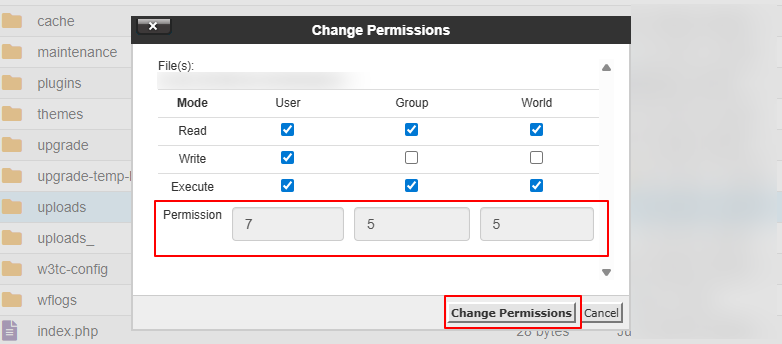
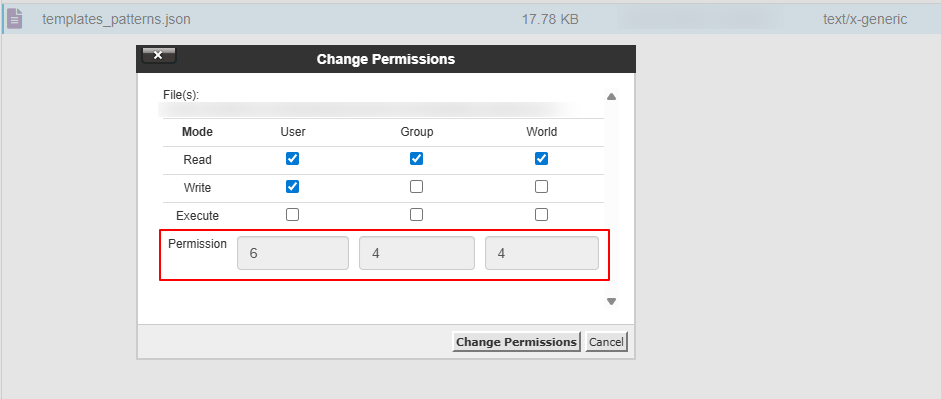
Save and try uploading the image again.
If you’re using cPanel at bodHOST, you can adjust permissions directly from File Manager without needing FTP.
Sometimes WordPress can’t process an image upload simply because the PHP memory limit is too low.
A: Using wp-config.php
Add this line before the “That’s all, stop editing” line:
define(‘WP_MEMORY_LIMIT’,’256M’);
B: Using php.ini
If your hosting supports it, add:
memory_limit = 256M
After increasing the limit, refresh your site and try uploading again.
Tip: For more technical reference, you can also check the official PHP documentation on memory limits on the PHP Manual.
It may sound simple, but file names with spaces, special characters or emojis usually fail to upload.
my [email protected]
party🎉photo.jpg
Fix it by:
Example: my-image-2025.jpg
A plugin conflict is a very common issue. Some image optimizations or security plugins can block uploads.
If the upload works, activate plugins one by one and identify which plugin is causing the problem. Older caching plugins, bulk image tools, and some security plugins are known to cause such issues.
Themes can also affect uploads, especially if they modify WordPress media functions or block certain file types.
If it works, your issue is theme-related. Updating or replacing the theme will solve the problem.
A corrupted .htaccess file can break media URLs or completely block uploads.
This regenerates a fresh .htaccess file. If it still doesn’t work, replace the file manually with this clean version:
# BEGIN WordPress
<IfModule mod_rewrite.c>
RewriteEngine On
RewriteBase /
RewriteRule ^index\.php$ – [L]
RewriteCond %{REQUEST_FILENAME} !-f
RewriteCond %{REQUEST_FILENAME} !-d
RewriteRule . /index.php [L]
</IfModule>
# END WordPress
Sometimes the browser itself is a troublemaker, not WordPress.
If it works, the issue is browser-related.
If the file is too large, WordPress may block the upload due to size restrictions.
If nothing seems to fix the problem, it may be on the server side:
In such cases, simply contact bodHOST support. They can check logs and fix it immediately.
If your images upload but look blurry or broken in the Media Library, regenerate your thumbnails.
This usually fixes preview and display issues.
Image upload issues in WordPress can feel frustrating, but the good part is that the fixes are usually simple and quick. Most of the time, the problem comes from incorrect permissions, low memory, or plugin conflicts. Once you follow these steps, your Media Library should work smoothly again. And if you’re hosted with bodHOST and still face trouble, our support team is always happy to help you get it sorted.
You can also read more about: How to Fix Memory Limit Issues in WordPress & PHP

Explore more hosting insights, tips and industry updates.
Users who are identified as potential spammers may have their outgoing mail automatically blocked or…
This article will detail the process of enhancing the WordPress memory limit within cPanel. The…
ZenCart Warning: main(): failed to open stream: No such file or directory in <. ZenCart…