
MS SQL Server Data Types: A Helpful Guide for Developers
Once you know how data is actually stored, working with databases becomes a lot easier.…

 Serena
This guide outlines the steps to connect to a Windows Server using Remote Desktop Protocol (RDP).
Follow the steps:
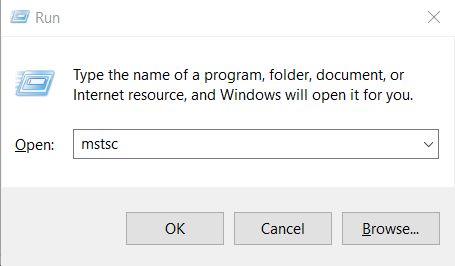
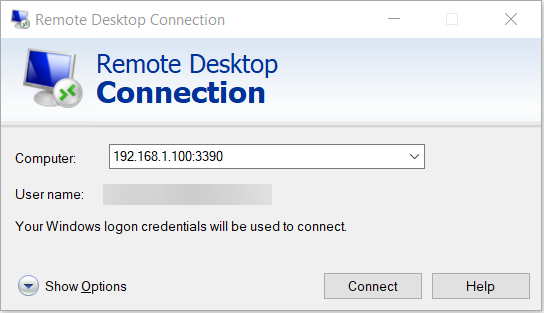
You are now successfully connected to your Windows Server via Remote Desktop and can manage it remotely.
Reach out to our support team for additional assistance.

Explore more hosting insights, tips and industry updates.
Once you know how data is actually stored, working with databases becomes a lot easier.…
OpenVZ is a container-based virtualization solution for Linux that allows you to run multiple isolated…
In this article, we have explained how to configure multiple network interfaces on Ubuntu 18.04.…