
How to Fix the 408 Request Timeout Error
If you’ve ever come across a 408 Request Timeout error while browsing or managing your…

This guide explains step-by-step how to delete a MySQL database in cPanel.
Steps to Wipe Out a MySQL Database:
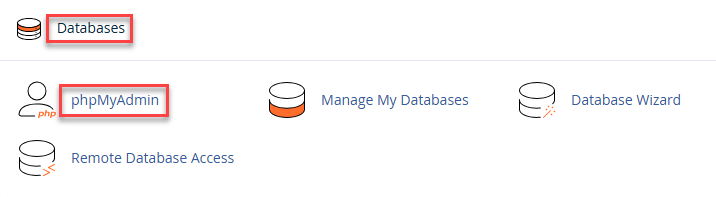
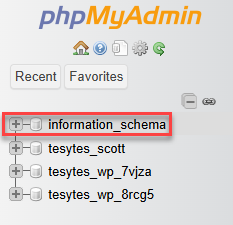
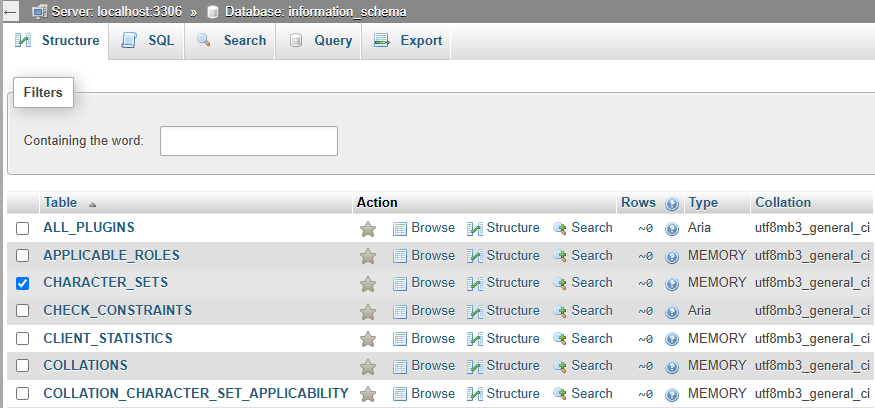
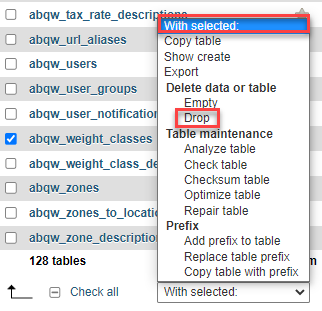

Following these steps, you can successfully wipe out a MySQL database using cPanel.
For additional assistance or queries related to web hosting, feel free to contact our support team—we’re here to help!
Read also more about How to Repair a MySQL Database in cPanel

Explore more hosting insights, tips and industry updates.
If you’ve ever come across a 408 Request Timeout error while browsing or managing your…
Firewalld is a lightweight, command-line firewall tool normally used on Linux systems. While it is…
If you check the properties of a Site in IIS, you can find that the…