In this article, we will explain in a few steps how to terminate a cPanel account in WHM.

Following are the steps for deleting a cPanel account in WHM:
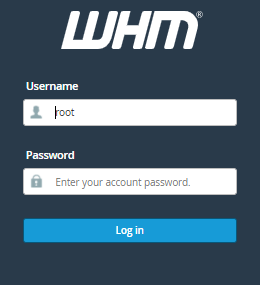
  1. Log into your “WHM”.
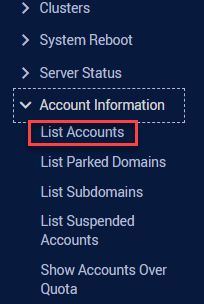
  2. Navigate to “Account Information” and click on the “List Accounts”.
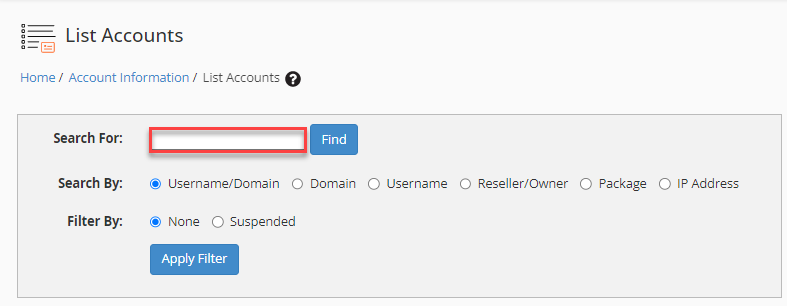
  3. By clicking the List Accounts button, you can see a list of the cPanel accounts that have been created on your server. The “Search For” option also allows you to look for the specific cPanel account that you need to delete.
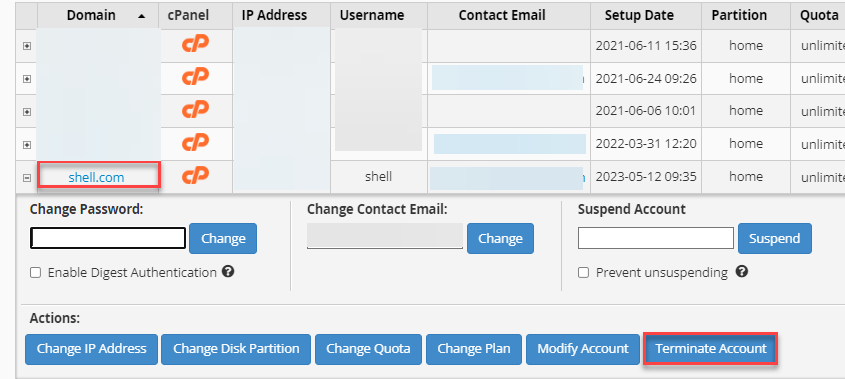
  4. On the life side of the domain, you will a small “Square Box”. Click on this box, and you will get to see the action panel for this cPanel account. Now, you need to click on the “Terminate Account” option to remove the account.
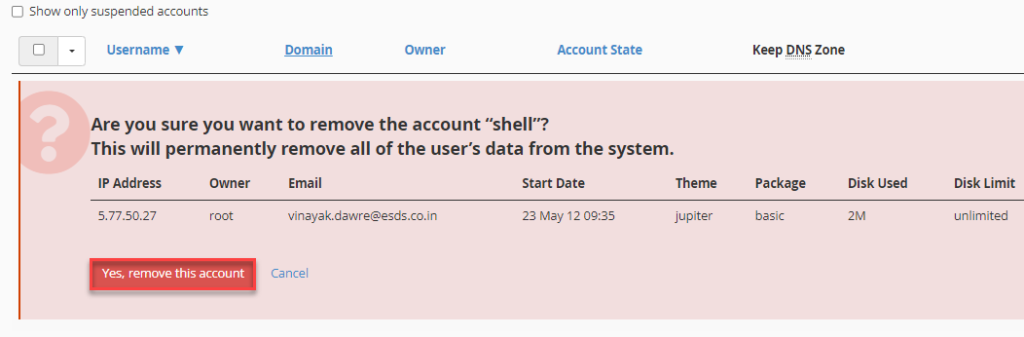
  5. Once you click on the “Terminate account” option, it will ask you a question. “Are you sure you want to remove the account (account name)”. Additionally, it informs, that all of the user’s data will be permanently deleted from the system.
  6. Click on the “Yes, remove this account”.

Your cPanel account will now be deleted from the server as this was the last step. As a result, depending on the size of your account, it can take some time to complete.

That’s all, then! Here’s how to close a cPanel account in WHM.

Popular Posts You May Read

Explore more hosting insights, tips and industry updates.

Change Default IP Address for Name-based Sites

When you’re hosting multiple websites on the same server using name-based virtual hosting, your server…

Domain Template Creation in Plesk Control Panel

To implement a hosting plan create a domain template, and define hosting services and resource…

What Clearly is a Domain Name Status?

Domain names have statuses also known as EPP status codes that determine their current state and…