Install cPanel on a Virtual Server Running CentOS 6 with 7 Simple Steps
An easy application, cPanel enables the monitoring of servers through a GUI interface instead of…

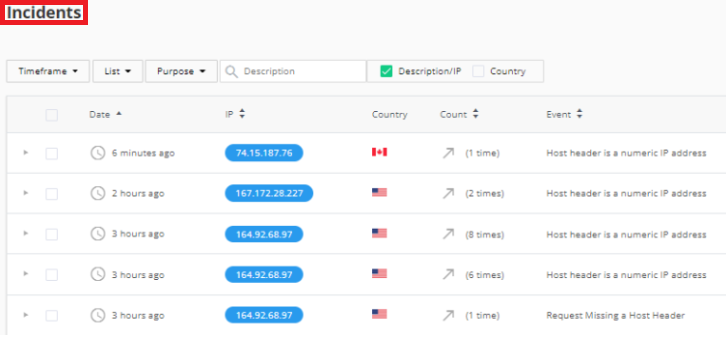
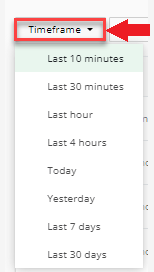
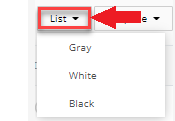
You will learn about Imunify360’s “Incidents” function in this post. On the Incidents page, you can get a list of all recent server incidents.
It monitors server logs, examines log files from all angles, and blocks IPs that behave dangerously, such as making unsuccessful login attempts or potentially exploiting a system.
Follow the below-mentioned steps:




For more help, get in touch with our experts, who are available around the clock.

Explore more hosting insights, tips and industry updates.
An easy application, cPanel enables the monitoring of servers through a GUI interface instead of…
Whenever you browse a website or use an online application, two main components work together…
Summary Today, we will learn how to save a MySQL database on a Windows environment,…