
Web Hosting for Nonprofits – Choose the Right Platform
In today’s digital realm, creating a robust online presence is crucial for nonprofits looking to…

A .deb file is a Debian package that can be installed directly on Ubuntu. You can install it from the Terminal using APT or dpkg, or use a graphical package installer on supported Ubuntu desktop versions.
Quick Answer
To install a local .deb file in Ubuntu, open Terminal, navigate to the directory containing the package and run:
sudo apt install ./package-name.deb
Replace package-name.deb with the actual name of your downloaded package. The ./ tells APT that the package is a local file instead of a package it should search for in the configured repositories.
To install a .deb file in Ubuntu:
APT is generally the preferred method for installing a local .deb package because it can resolve dependencies that are available through your configured Ubuntu repositories.
In this guide, we will cover different ways to install .deb files in Ubuntu, how to check a package before installing it, verify the installation, fix dependency problems and remove the package when it is no longer needed.
A .deb file is a Debian software package used by Debian-based Linux distributions, including Ubuntu.
A package can contain:
A downloaded package may have a filename similar to:
example-app_1.0.0_amd64.deb
The filename can include the application name, package version and target architecture.
Ubuntu uses the Debian package format, which is why .deb files are commonly used to distribute Linux applications outside the standard Ubuntu repositories.
You may need to install a .deb package when:
For example, a software vendor may provide a .deb download specifically for Ubuntu users instead of asking them to install the application from the default repositories.
Installing a local package is straightforward, but it is worth checking a few things first.
A .deb file is not automatically safe simply because Ubuntu can install it.
Installing a package can execute installation scripts with administrative privileges. Download packages from the software vendor or another source you trust.
If the vendor provides a checksum or digital signature, verify it where appropriate.
The package must support your system architecture.
Run:
dpkg –print-architecture
You may see:
amd64 or arm64
Additionally, ensure the .deb package you download supports the architecture reported by your system.
A package built for one Ubuntu release may depend on libraries or package versions that are unavailable on another release.
If the software vendor specifies supported Ubuntu versions, check those requirements before installing the package.
APT is the recommended starting point for most users who need to install a local .deb package. APT works at a higher level than dpkg and can resolve dependencies that are available through your configured repositories.
On Ubuntu Desktop, press:
Ctrl + Alt + T
You can also search for Terminal from the Applications menu.
If the package is in your Downloads directory, run:
cd ~/Downloads
Then check the files:
ls
Find the exact .deb filename in the output.
Updating the package index is useful when APT may need to download dependencies from your configured repositories.
Run:
sudo apt update
Enter your password when prompted.
Run:
sudo apt install ./package-name.deb
For example:
sudo apt install ./example-app_1.0.0_amd64.deb
The ./ is important. It tells APT that the package is a local file in the current directory.
You can also provide the complete path without changing directories:
sudo apt install ~/Downloads/example-app_1.0.0_amd64.deb
APT will show the package it plans to install and any additional packages or changes required.
Review the output before confirming.
If APT asks: Do you want to continue? [Y/N]
Press “Y” and press Enter if the proposed changes are expected. APT will then install the package and configure it.
Both APT and dpkg can install .deb packages, but they operate at different levels.
dpkg is a lower-level Debian package management tool. It can install a .deb package, but it does not automatically obtain missing dependencies.
APT provides higher-level package management and can resolve dependencies when suitable packages are available through the configured repositories.
For most users, this makes APT the more convenient option for installing a local .deb file.
In simple terms:
APT >> Installs the .deb >> Checks dependencies >> Can obtain available dependencies >>
Whereas:
dpkg >> Installs the .deb >> Does not automatically resolve missing dependencies
This difference becomes important when the application requires packages that are not already installed
dpkg is useful when you need lower-level control over Debian packages or are troubleshooting package states.
Go to the directory containing the package:
cd ~/Downloads
Then run:
sudo dpkg -i package-name.deb
For example:
sudo dpkg -i example-app_1.0.0_amd64.deb
You can also use the long-form command:
sudo dpkg –install package-name.deb
A common situation is for dpkg to install or unpack a package but leave it unconfigured because required dependencies are missing.
In that case, run:
sudo apt –fix-broken install
The –fix-broken option tells APT to attempt to correct a system with broken dependencies.
You can also use the shorter equivalent:
sudo apt install -f
If package configuration was interrupted, you can also run:
sudo dpkg –configure -a
These commands address different aspects of package recovery, so the command you need depends on the state reported by the package manager.
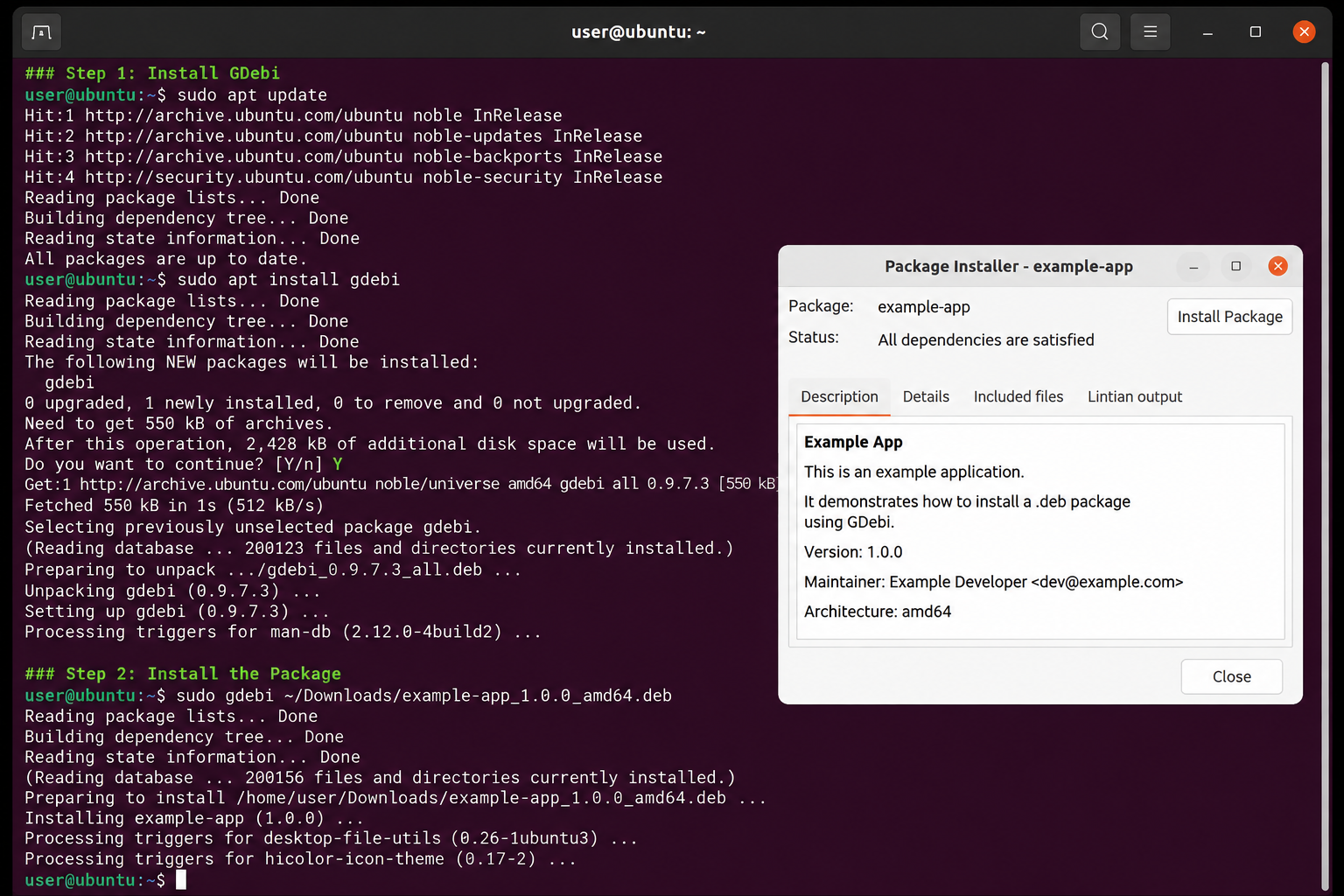
GDebi is a utility designed for installing local .deb packages. It can resolve and install dependencies required by the package. GDebi is optional because APT already provides a straightforward way to install local .deb packages.
Run:
sudo apt update
sudo apt install gdebi
Use:
sudo gdebi package-name.deb
For example:
sudo gdebi ~/Downloads/example-app_1.0.0_amd64.deb
GDebi will display package information and ask you to confirm the installation.
There is usually no need to install another tool if APT already meets your requirements. GDebi can still be useful if you prefer its interface or workflow for local package installation.
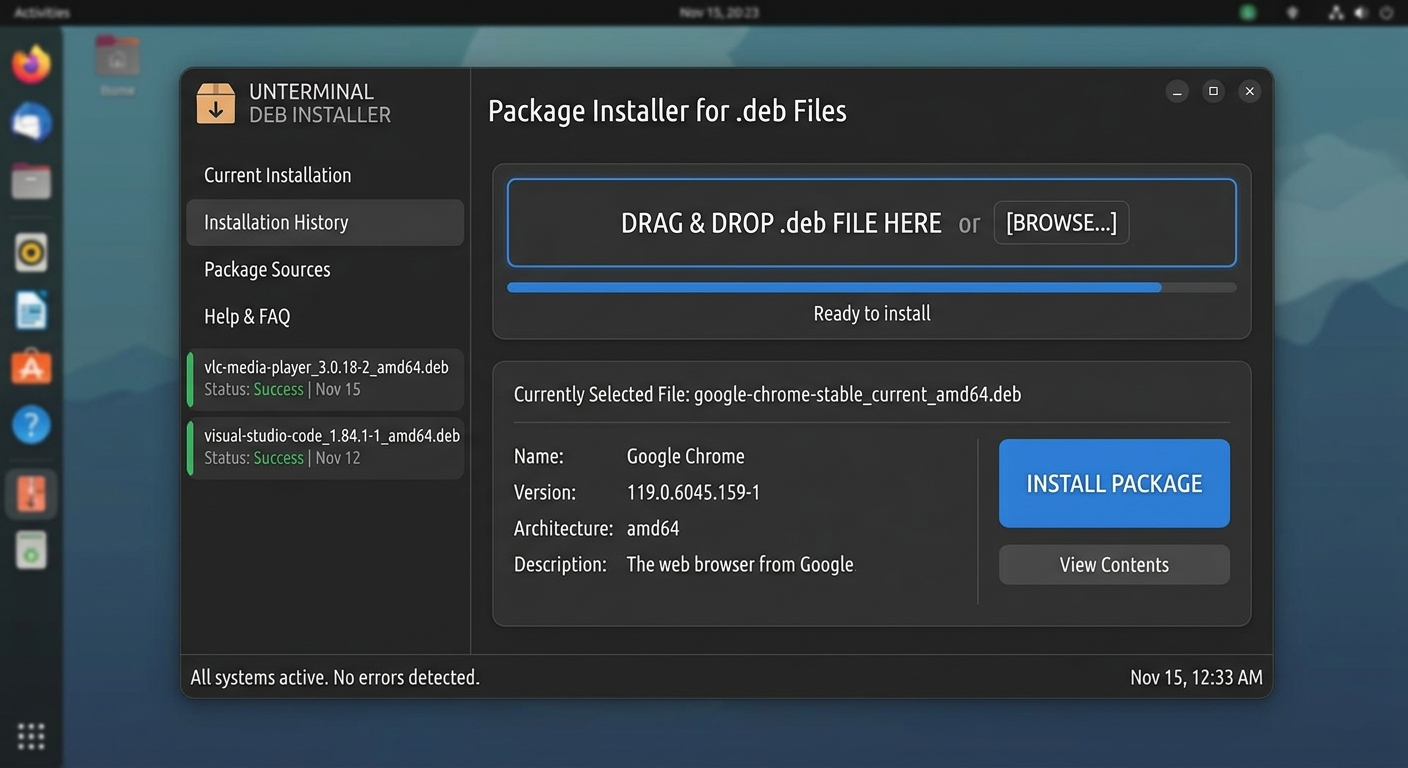
Ubuntu Desktop may provide a graphical package installer for .deb files. The exact interface can vary depending on your Ubuntu release and installed software.
If your system has a compatible graphical installer:
If the graphical installer is not available or does not open the package correctly, use APT:
sudo apt install ~/Downloads/package-name.deb
This is also the practical approach on Ubuntu Server, where a graphical desktop environment is generally not installed.
If you downloaded a package from outside the Ubuntu repositories, you can inspect it before installation.
Run:
dpkg -I package-name.deb
This displays information such as: Package name, Version, Architecture, Description and Dependencies.
Use:
dpkg -c package-name.deb
This lets you see the files contained inside the package without installing it. Inspecting a package can be useful when you want to understand what you are about to install before giving it administrative privileges.
The downloaded filename is not always the same as the package name recorded in the Debian package metadata.
You can find the package name with:
dpkg-deb -f package-name.deb Package
For example:
dpkg-deb -f example-app_1.0.0_amd64.deb Package
The output is the package name recorded inside the .deb.
This is useful when you later need to remove or query the package.
After installing the package, you can check its status using dpkg.
Run:
dpkg -l | grep package-name
Replace package-name with the actual package name.
For a more direct status check, use:
dpkg-query -W -f=’${Status}\n’ package-name
A successfully installed package should return: install ok installed
This checks the package database rather than simply checking whether the application appears in the Applications menu.
You do not uninstall a .deb package by deleting the downloaded .deb file. The .deb file is the package archive. After installation, Ubuntu records the installed package in its package database.
To remove the installed software, run:
sudo apt remove package-name
For example:
sudo apt remove example-app
If you also want to remove the package’s configuration files, use:
sudo apt purge package-name
After removing software, you can check whether automatically installed dependencies are no longer required:
sudo apt autoremove
Review the packages APT proposes to remove before confirming.
The recommended command for installing a local .deb package is:
sudo apt install ./package-name.deb
Replace package-name.deb with the actual package filename. The ./ specifies that the package is a local file.
Open Terminal, navigate to the directory containing the package and run:
cd ~/Downloads
sudo apt install ./package-name.deb
APT will install the local package and can resolve dependencies that are available through your configured repositories.
For most users, yes. APT provides higher-level package management and can resolve available dependencies. dpkg is a lower-level tool that installs the package but does not automatically obtain missing dependencies.
Yes. Ubuntu Desktop may provide a graphical package installer for .deb files. The exact interface depends on your Ubuntu release and installed software.
If the graphical installer is unavailable, use:
sudo apt install ~/Downloads/package-name.deb
Use:
sudo apt remove package-name
To remove the package and its configuration files:
sudo apt purge package-name
Yes. Ubuntu Server can install local .deb packages directly from the command line:
sudo apt install ./package-name.deb
A graphical desktop environment is not required.
Installing a .deb file in Ubuntu is straightforward once you know which package manager to use.
For most situations, APT is the best starting point:
sudo apt install ./package-name.deb
It provides a simple way to install a local Debian package while allowing APT to resolve dependencies available through your configured repositories.
dpkg remains useful when you need lower-level package control or are troubleshooting package states. GDebi is another option if you prefer a dedicated local package installer, while Ubuntu Desktop users may have a graphical installation option depending on their release and installed software.
If you manage an Ubuntu VPS, the Terminal-based approach is particularly useful because you can install and manage software without relying on a graphical desktop environment.
For businesses, developers, and system administrators running Ubuntu workloads, having a reliable Linux VPS environment also gives you the flexibility to install and configure the software your applications require.
For more reference, you can also check out:

Explore more hosting insights, tips and industry updates.
In today’s digital realm, creating a robust online presence is crucial for nonprofits looking to…
There are several web hosting service providers that provide a number of plans, which can…
Don’t let your website turn into a haunted house this Halloween! Downtime, slow loading speeds,…