Dedicated Server(s) Data Migration with minimal Downtime
These are the points you should remember before transferring a data from one dedicated server…

 Paul Lopez
As WordPress error logs are your website’s black box recorder, finding and accessing them is one of the most frequently discussed topics among WordPress users.
The following guide will walk you through every useful method for using cPanel, File Manager, FTP, and WP_DEBUG to check WordPress logs.
In brief, the debug.log WordPress file is located in /wp-content/debug.log, whereas the primary WordPress error log route is /public_html/error_log. These can be accessed via File Manager, FTP, cPanel WordPress logs, or by turning on WP_DEBUG for further logging options.
WordPress error logs are files that record problems happening on your website’s backend. They help you quickly understand what’s going wrong without guessing. These logs track various issues, like PHP errors, database connection problems, missing files, or conflicts with plugins and themes.
By checking these error logs, you can find the source of the issue, which can help troubleshoot and ensure that you resolve the issue more efficiently.
|
Log Type |
Location |
Filename |
| PHP Error Log |
/public_html/ |
error_log |
| WP Debug Log |
/wp-content/ |
debug.log |
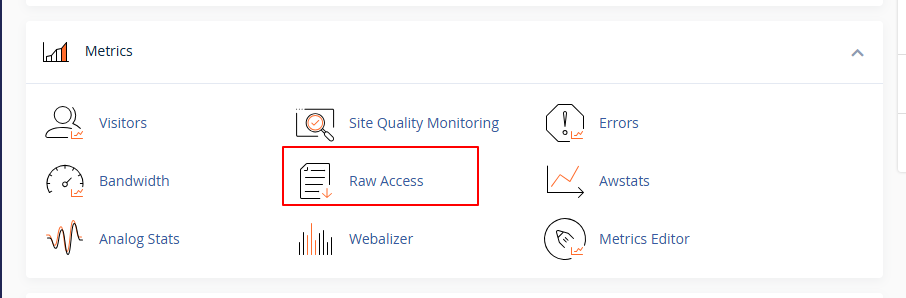
| Raw Access Logs |
cPanel >> Raw Access |
access.log |
| Plugin Logs |
/wp-content/plugins/plugin-name/logs/ |
log.txt |
Before accessing logs, make sure you have:
To enable WordPress debug mode, edit wp–config.php and add WP_DEBUG and WP_DEBUG_LOG as true. This generates a debug.log file inside wp–content.
Steps:
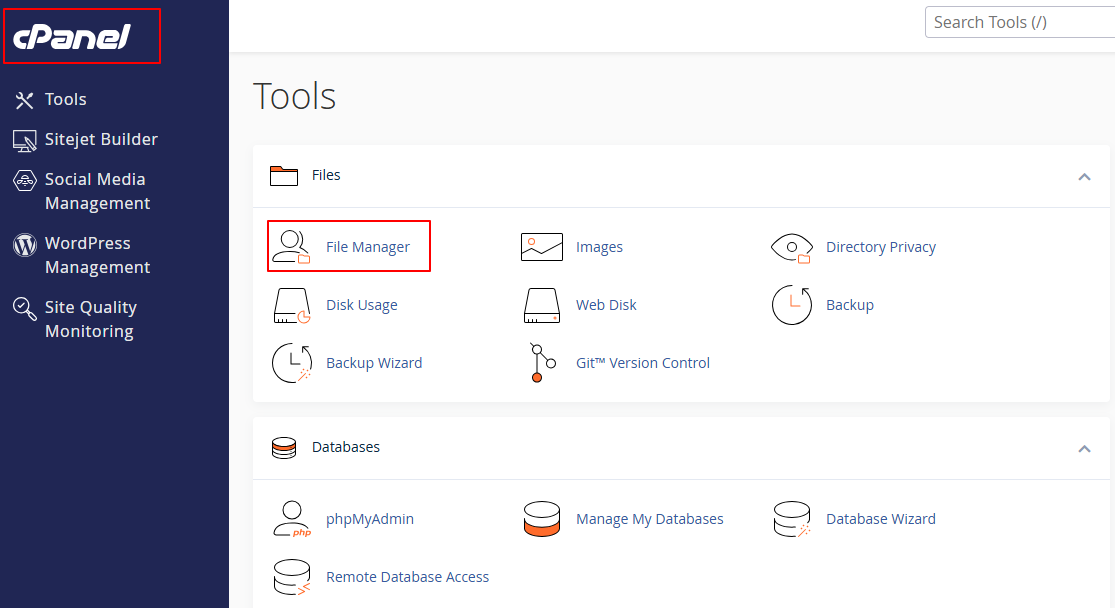
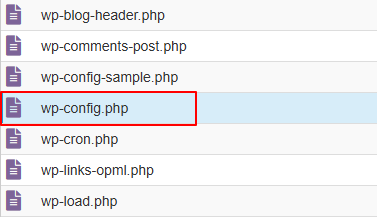
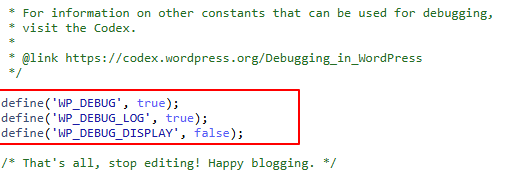
Steps:
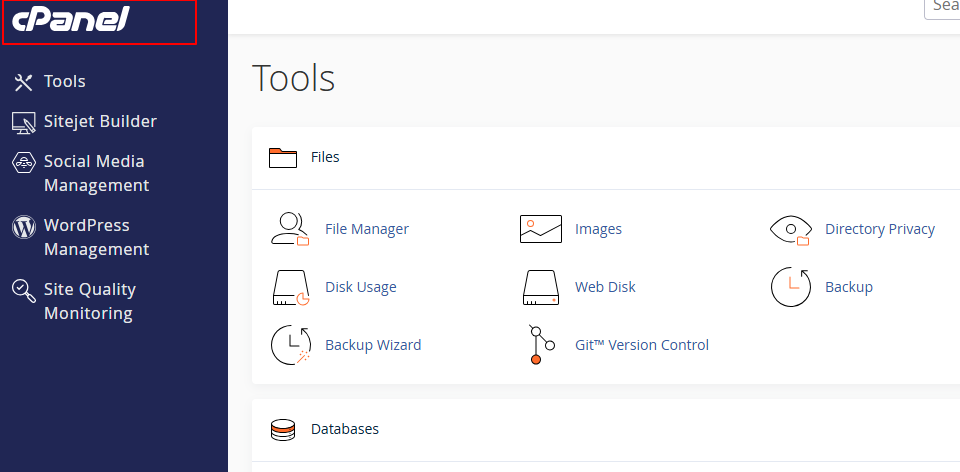
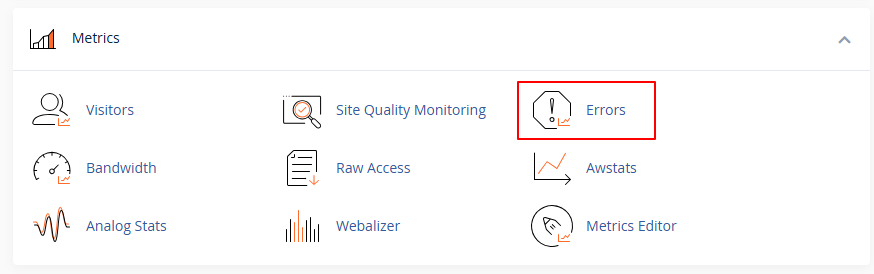
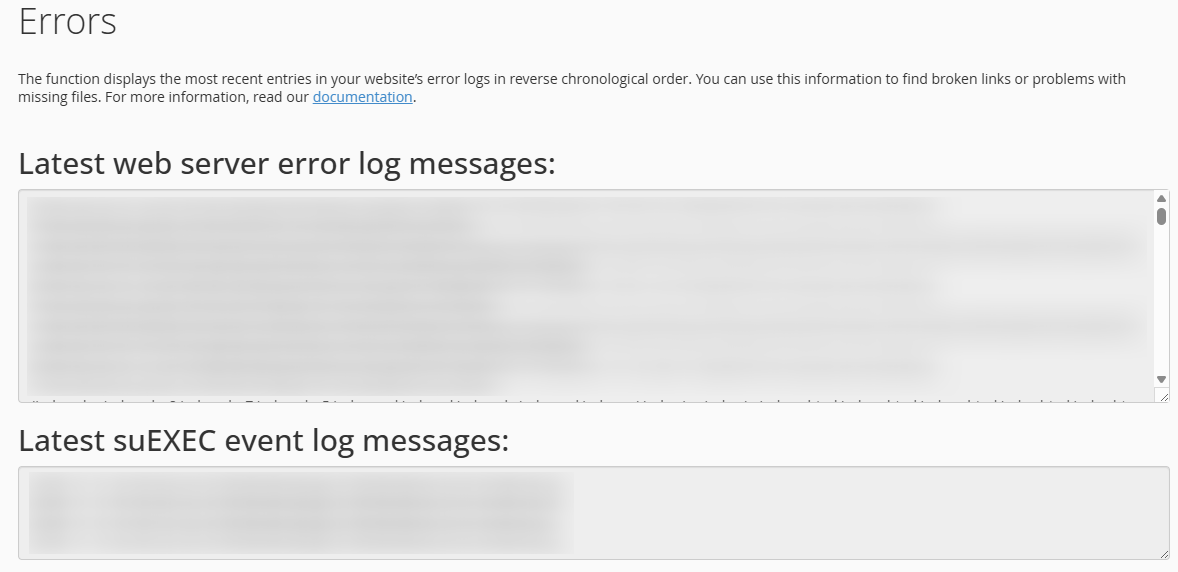
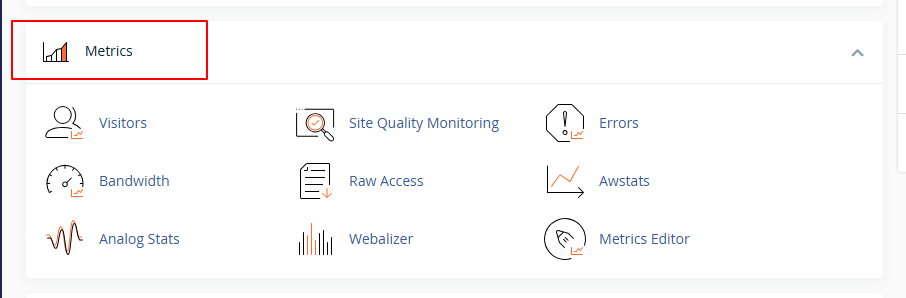
Steps:
Steps:
Steps:
|
Error Type |
Example Message | What It Means |
|
Fatal Error |
Call to undefined function |
Plugin or theme conflict |
|
Memory Exhausted |
Allowed memory size exhausted |
Need to increase PHP memory |
|
Deprecated Warning |
Function xyz is deprecated |
Old code used in theme/plugin |
|
Database Error |
Error establishing DB connection |
Wrong DB credentials or DB down |
By revealing the exact fault that is causing problems on your website, WordPress error logs make troubleshooting much simpler. Regardless of whether you use cPanel, File Manager, FTP, or WP_DEBUG, these logs serve as a guide to rapidly identify and resolve technical issues.
You can preserve the features of your WordPress website and confidently diagnose issues by following the above instructions.

Explore more hosting insights, tips and industry updates.
These are the points you should remember before transferring a data from one dedicated server…
There are many companies out there that offer CDN services. A Content Delivery Network, or…
In this article, we will explain to you how to use Plesk to delete an…