
How to Clear DNS Cache on iPhone and Android Devices
DNS (Domain Name System) cache is a temporary storage on your device that saves the…

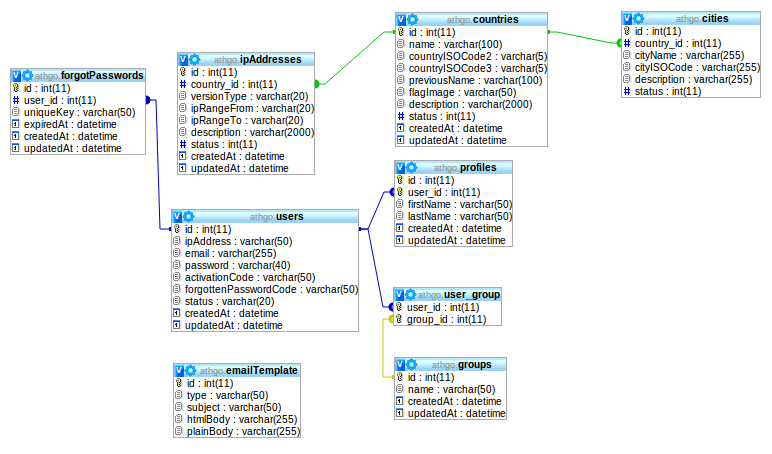
The designer mode in phpMyAdmin allows us to view databases, tables, and the various fields that form a diagram. One can also easily view the relationship between tables there. It is a very convenient mode when one often tries to design, modify, or explore database systems.
For this tutorial, we will see how to activate this designer mode in phpMyAdmin (4.1). Just for your information, this tutorial is validated under WAMP.
Activation of Designer Mode
So let’s begin, to activate designer mode we’ll start by going to find a file name as config.inc.php in the phpMyAdmin installation directory.
$cfg['Servers'][$i]['pmadb'] = 'phpmyadmin';
$cfg['Servers'][$i]['bookmarktable'] = 'pma__bookmark';
$cfg['Servers'][$i]['relation'] = 'pma__relation';
$cfg['Servers'][$i]['table_info'] = 'pma__table_info';
$cfg['Servers'][$i]['table_coords'] = 'pma__table_coords';
$cfg['Servers'][$i]['pdf_pages'] = 'pma__pdf_pages';
$cfg['Servers'][$i]['column_info'] = 'pma__column_info';
$cfg['Servers'][$i]['history'] = 'pma__history';
$cfg['Servers'][$i]['designer_coords'] = 'pma__designer_coords';
$cfg['Servers'][$i]['userconfig'] = 'pma__userconfig';

Explore more hosting insights, tips and industry updates.
DNS (Domain Name System) cache is a temporary storage on your device that saves the…
The following post shows detailed steps to enable and disable the Server Message Block (SMB)…
When exploring VPS hosting or server setups, you’ll often come across two terms: Physical RAM…