We come across a query of automatically logging in to a Windows user who is already disconnected. If you are also facing the same issue, then check the following guidelines. Note: the steps for this start from “Windows Group Policy”.

  1. Log in to your Windows Server
  2. Open “Group Policy” by running the command through the “Run” tab -> gpedit.msc
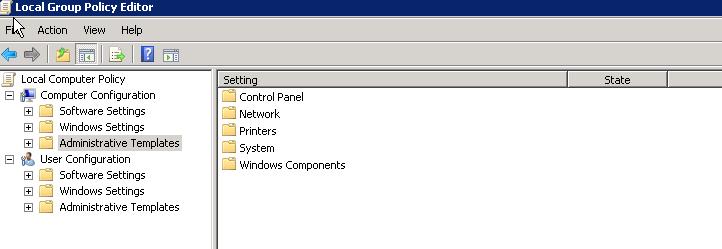
  3. On the left side you will see “Administrative Templates” – Click on that option
    disconnected windows user_1
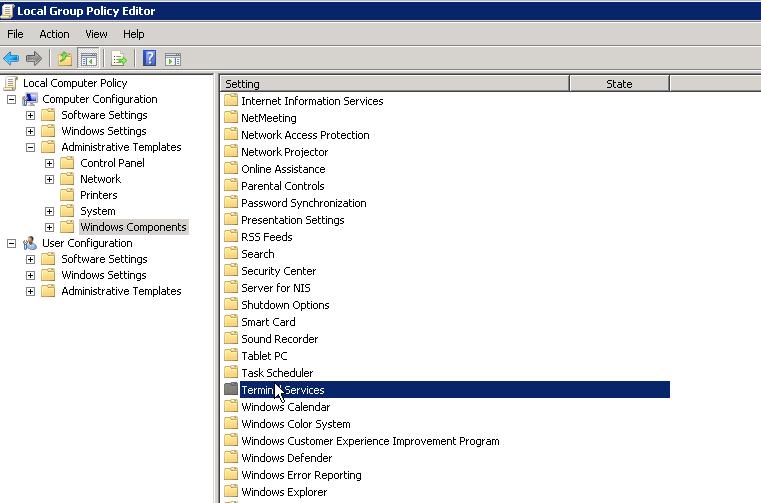
  4. On the right side there is “Windows Components” – Click on that file.
  5. Now click on “Terminal Services”
    disconnected windows user_2
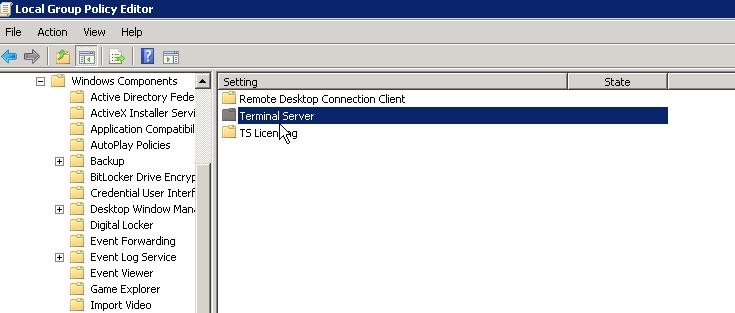
  6. In “Terminal Services” you will see three files – select “Terminal Server”.
    disconnected windows user_3
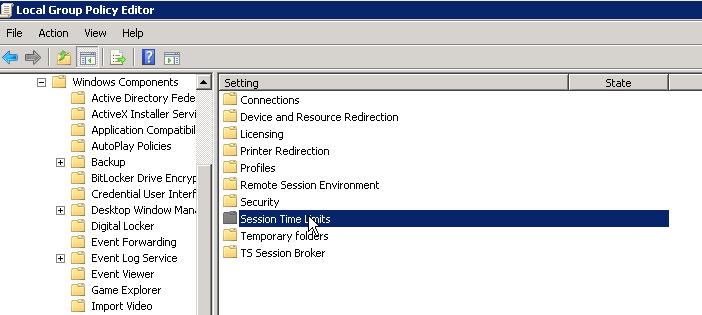
  7. After clicking on “Terminal Server” you will see several files > select “Session Time Limits”.
    disconnected windows user_4
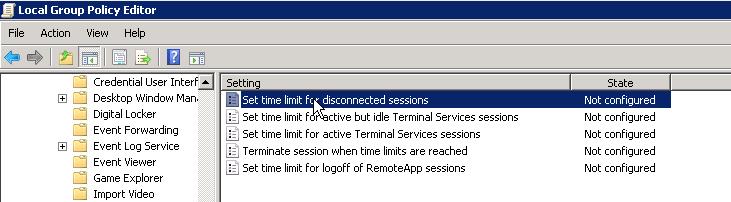
  8. In “Session Time Limits” you will see “Set a time limit for disconnected sessions” isn’t configured.
    disconnected windows user_5
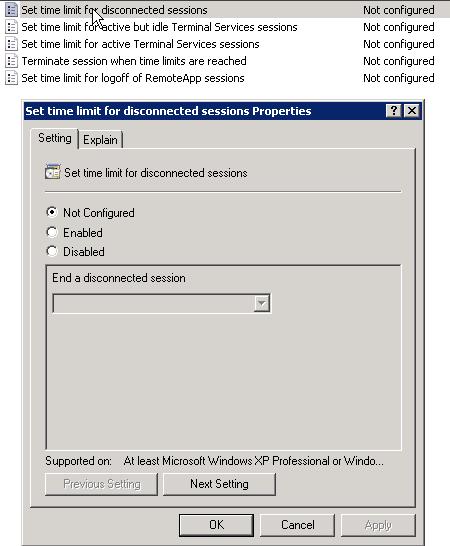
  9. Click on “Set time limit for disconnected sessions” – you will see setting options.
    disconnected windows user_6
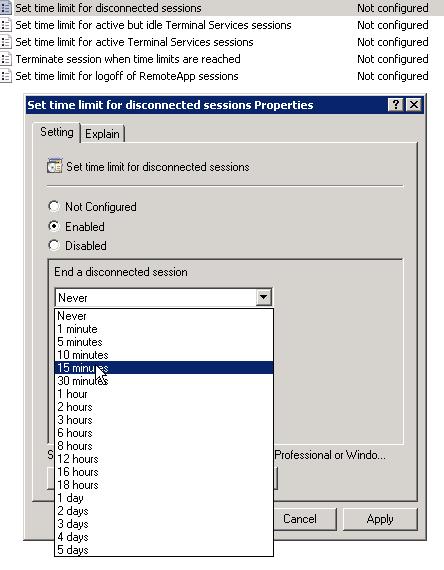
  10. Click on “Enabled” and select a time span.
    disconnected windows user_7
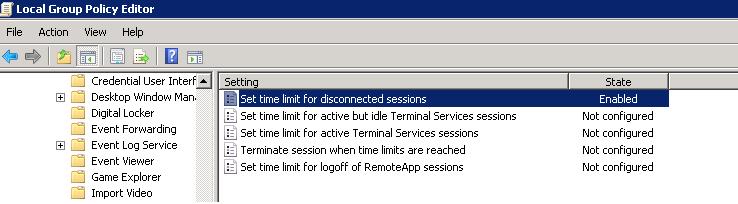
  11. Now click on “Apply” and then “OK”
    disconnected windows user_8

That’s it!!!

Popular Posts You May Read

Explore more hosting insights, tips and industry updates.

SSL Errors, What Are They and What Do They Mean?

When browsing the internet you have gotten the occasional popup informing you that the site.…

What is a URL Redirect and How does it Function

What is a URL Redirect and How does it Function

In this article, you will discover what is a URL redirect and how it works.…

Why should i go for Cloud Computing Solution?

Cloud Computing as a new concept to new users creates a lot of confusion as…