SSL Certificate Installation, License on Dedicated Server
If you are looking for SSL ( Secure Socket Layer ) to installed on your…

 Paul Lopez
Whether you’re building a blog, a business site, or an online store, adding links and buttons helps guide your visitors and improve their experience. This guide will walk you through the easiest ways to do both, no coding required!
Let us follow the guide:
Links connect your content to other pages, posts, or external websites. You can add them to text, images, buttons, and even widgets.
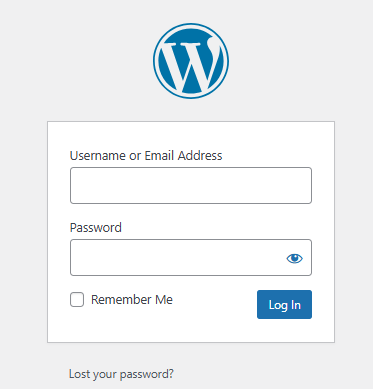
Enter your username and password on your website’s login page, which is usually yourwebsite.com/wp-admin.
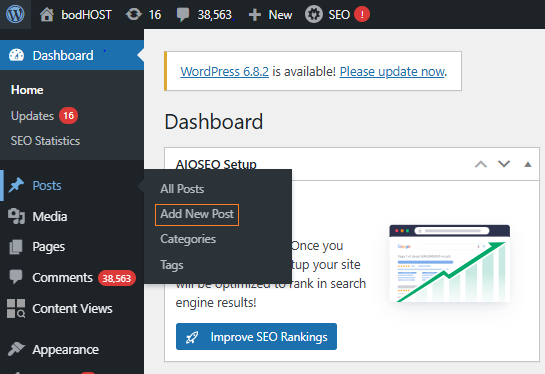
Start by creating a post or page, or editing one that’s already there. Need help? The guides below will walk you through it.
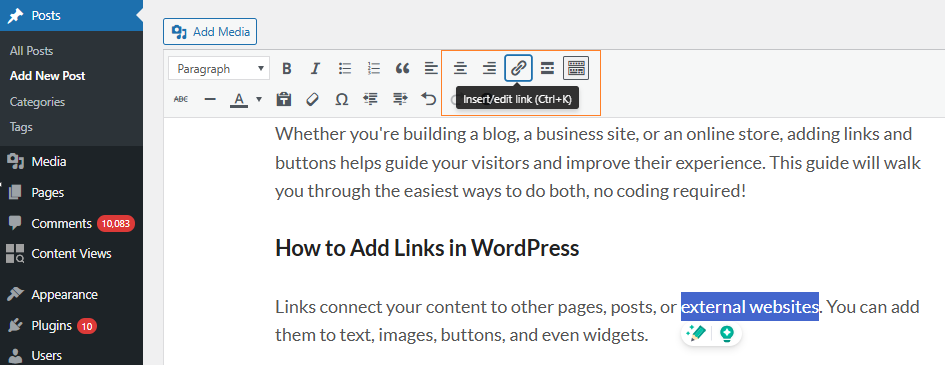
Choose the sentence or word you want as a link, then click and drag your mouse to highlight the text.
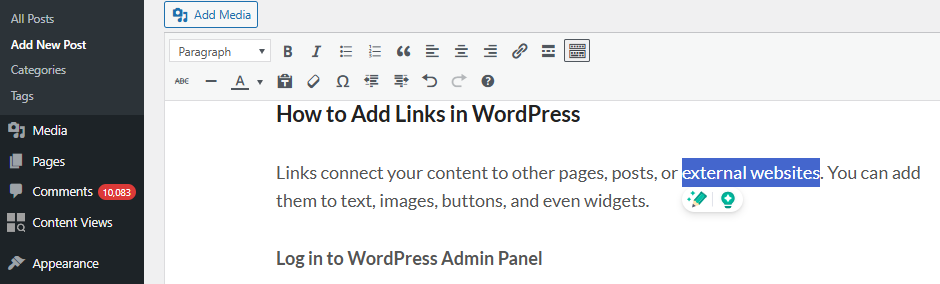
In the toolbar above the text editor, click the link icon (it looks like a chain).
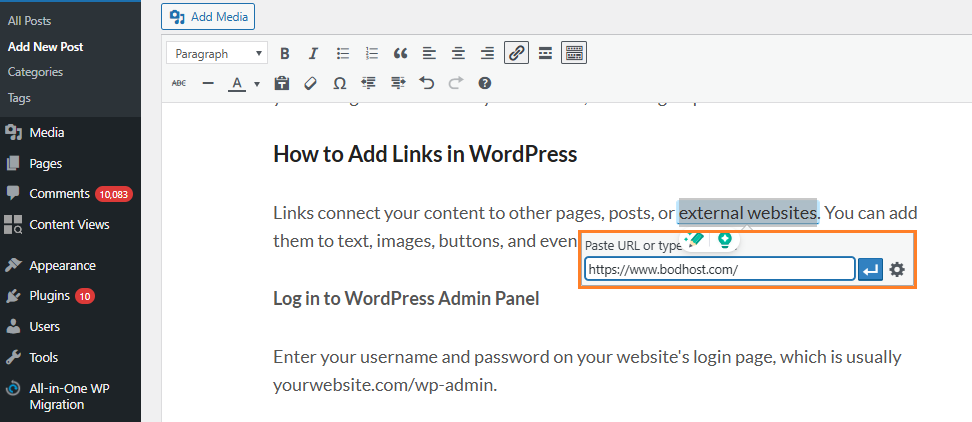
Paste the web address you want to link to. You can also search for another page on your site.
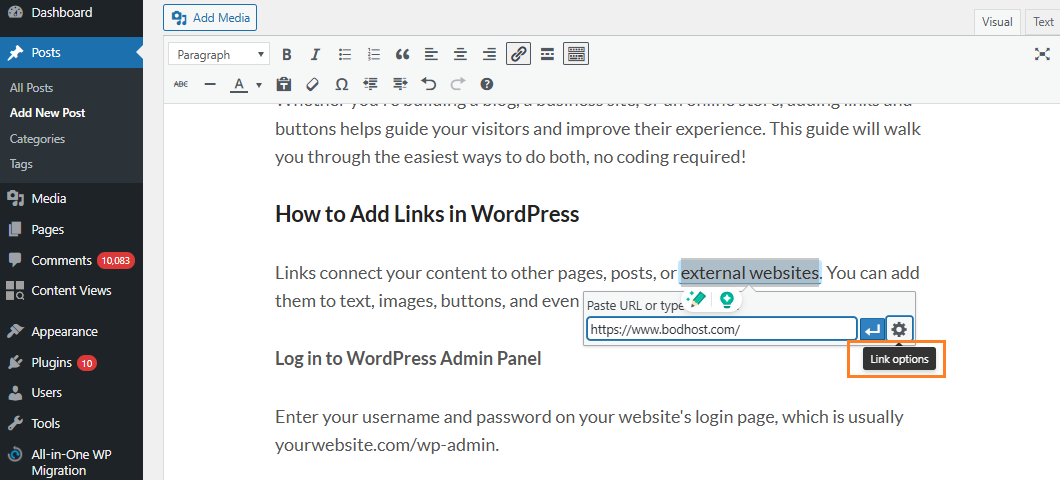
If you want the link to open in a new tab, toggle the option.
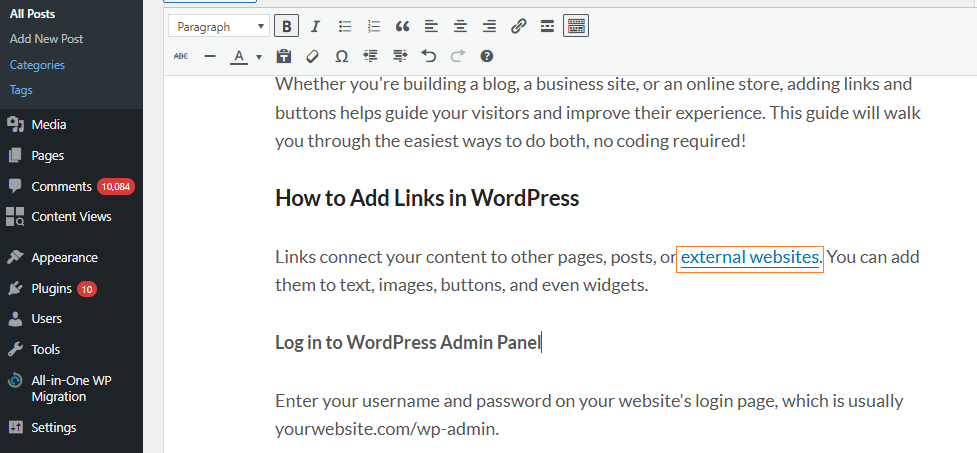
Press Enter or click Apply to add the link, then click Update or Publish to save.
Buttons are more visible than links and are great for actions like “Buy Now” or “Contact Us”. Steps to Add a Button Using the Block Editor
Steps to Add a Button Using the Block Editor
If you want more control over button design or want to reuse buttons across your site, you can install a plugin. Here are a few popular options:
This method lets you easily add links and buttons in WordPress, enhancing your website’s navigation and user experience. Use links to connect text to other pages or external sites, and buttons to emphasize key actions like “Contact Us” or “Buy Now.” You can rely on the built-in editor or use plugins for advanced features. Always test your changes and maintain a clear, consistent design.
Follow our guide How to Incorporate a New Link into the WordPress Sidebar for quick customization.

Explore more hosting insights, tips and industry updates.
If you are looking for SSL ( Secure Socket Layer ) to installed on your…
In this article, you will find the procedure of Customizing the version of the MySQL…
In this article, we will guide you through the macOS installation of PIP, the Python…