In this guide, you will learn to troubleshoot and fix ERR_SSL_PROTOCOL_ERROR. Web browsers frequently display this error, which means that a secure connection between the browser and the website was not established. This typically occurs as a result of client-side conflicting settings, out-of-date software, or misconfigurations.
Follow these steps to troubleshoot and fix the issue:
- Check your device’s date and time settings:
Incorrect system date or time can stop SSL certificates from being validated.
Steps
1. Check the date and time on your device:
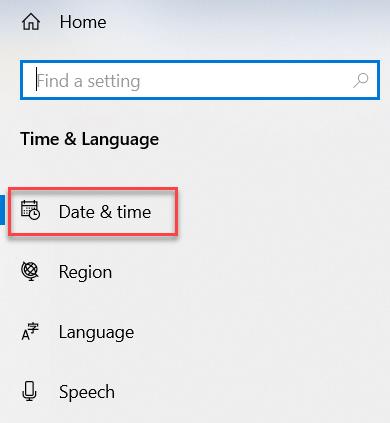
- Open Settings > Go to Time & Language.
- Click Date & Time.
-
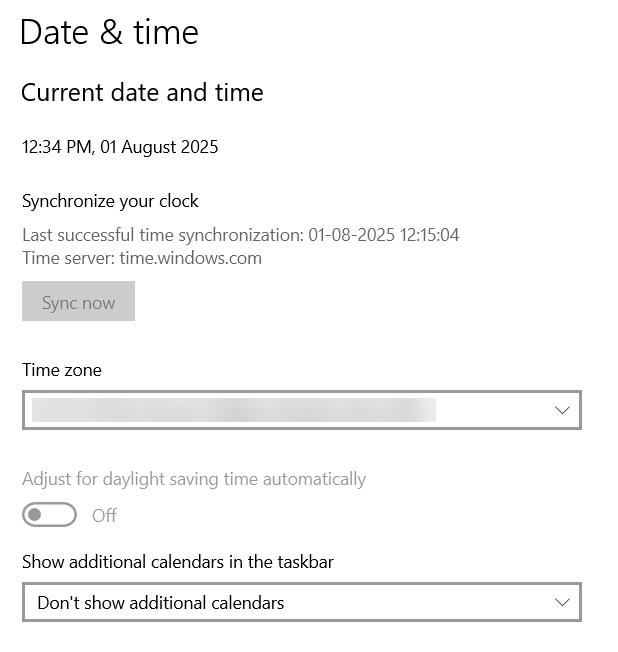
Ensure that “Set time automatically” is turned ON and the time zone is correctly set to (UTC+05:30) Chennai, Kolkata, Mumbai, New Delhi.
-
Under Synchronize your clock, click “Sync now” if available.
-
Ensure your system time matches current local time.
- Clear Browser Cache and Cookies:
Corrupted or outdated cache and cookies may cause SSL issues.
Steps
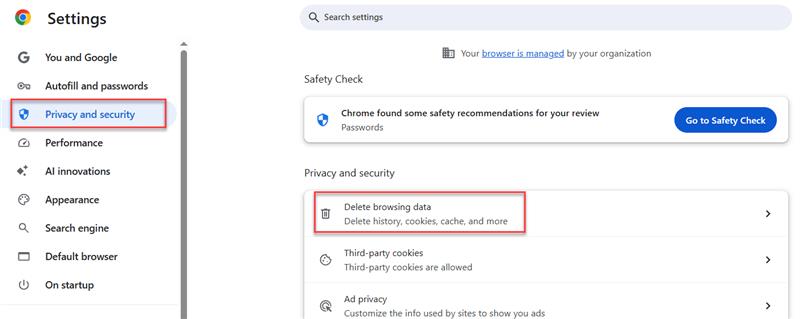
1. Go to your browser’s Settings > Privacy & Security > Delete browsing data.
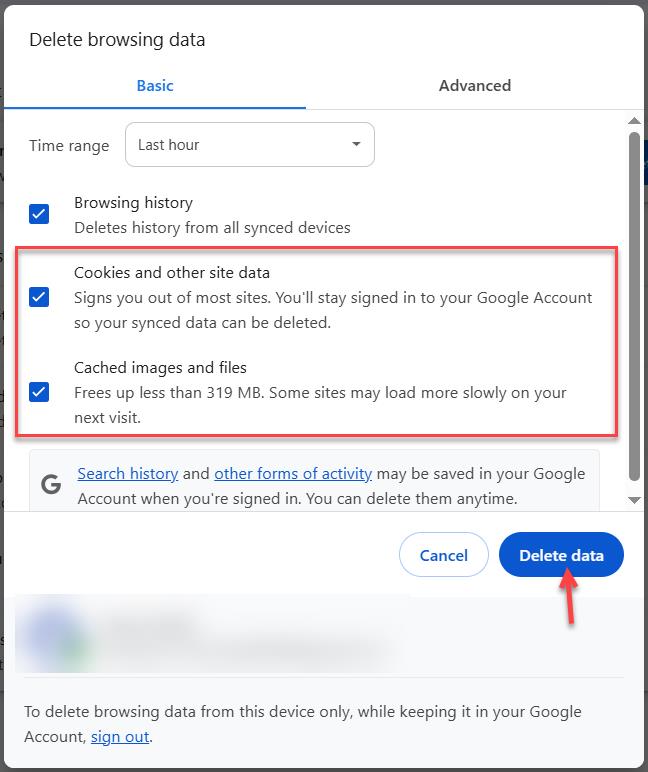
2. Select “Cookies and Cached images and files.
3. Click “Delete Data” and restart your browser.
- Temporarily Disable Antivirus or Firewall:
Security software can sometimes block SSL connections.
Steps
1. Disable your antivirus or firewall temporarily.
2. Try accessing the website.
3. If it works, add the site to the exceptions list of your security software.
4. Re-enable your antivirus or firewall afterward.
- Verify SSL/TLS Settings in Your Browser:
Some browsers allow manual control over SSL/TLS versions.
Steps
1. Access Advanced Settings or Flags in your browser.
2. Ensure TLS 1.2 and TLS 1.3 are enabled.
- Update Your Browser:
An outdated browser may not support modern SSL protocols.
Steps
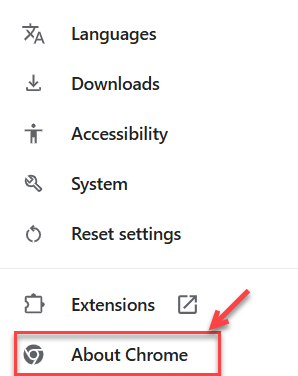
1. Go to your browser’s About section or Settings > About Chrome.
2. Download and install any available updates.
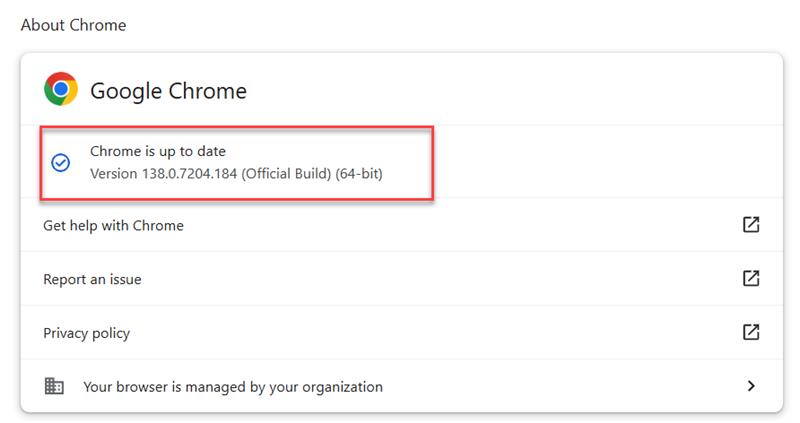
3. Restart the browser and try again.
-
Use Incognito or Private Browsing Mode:
Private mode runs the browser without extensions or cache.
Steps
1. Open a new Incognito/Private window.

2. Visit the site to see if the error persists.
- Flush DNS Cache:
Clearing the DNS cache helps resolve incorrect or outdated IP entries.
1. Windows
ipconfig /flushdns
2. Mac
sudo killall -HUP mDNSResponder
3. Linux
sudo systemd-resolve –flush-caches
-
Scan for Malware:
Malware can interfere with SSL certificate validation.
Steps
1. Run a full system scan using trusted antivirus software.
2. Quarantine or remove any detected threats.
3. Restart your device and retry.
-
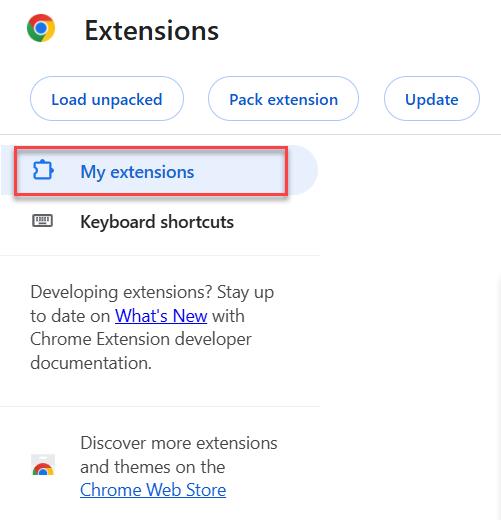
Disable Browser Extensions:
Extensions may disrupt secure connections.
Steps
1. Disable all browser extensions.
2. Refresh the page.
3. Re-enable extensions one by one to find the culprit.
-
Try a Different Network:
A misconfigured network could be blocking SSL traffic.
Steps
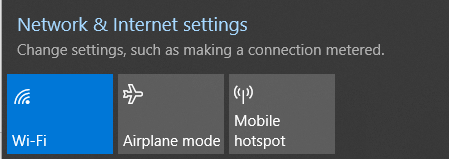
1. Switch to another Wi-Fi connection or mobile hotspot.
2. Retry accessing the site.
3. If it works, your network settings may need attention.
-
Contact the Website Owner:
If none of the above solutions work, the issue may lie with the website’s server configuration.
Steps
1. Reach out to the website’s support or admin.
2. Provide the full error message and the URL you are trying to visit.
By following these easy steps, you may be able to troubleshoot and fix the ERR_SSL_PROTOCOL_ERROR on your end. After attempting all the above possibilities, if the problem still exists, it is most likely server-side. Maintaining secure and seamless browsing requires keeping your system and browser updated.


 Paul Lopez