
Black Friday: The Web Hosting Sales Event of the Year
Black Friday is just an informal name given to the day right after Thanksgiving Day…

 Paul Lopez
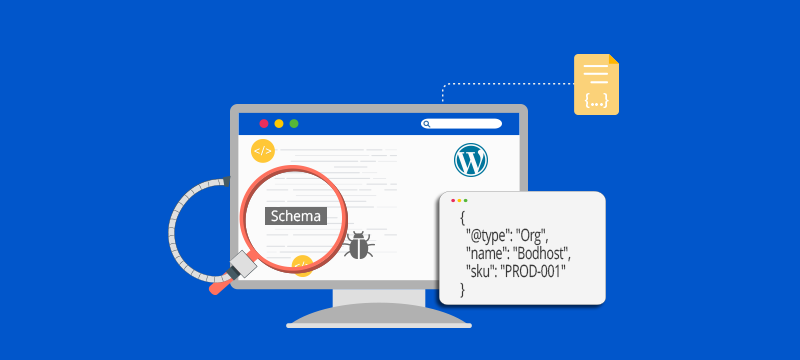
If you want your WordPress website to stand out in search results in 2026, adding schema markup is no longer optional, it’s essential. With search engines and AI-powered overviews increasingly relying on structured data, schema markup helps them understand your content better, improving visibility, click-through rates, and rich search results.
In this guide, we will show you how to add schema markup in WordPress using both manual methods and plugins. Plus, we will cover how to test your markup to ensure it works perfectly, so your website can gain the SEO edge it deserves. By the end, you’ll have a complete roadmap to make your content more discoverable and attractive to both users and search engines.
A kind of structured information that makes it easier for search engines to understand your WordPress content is schema markup. When properly implemented, it enhances the way your pages show up in search results, frequently displaying rich snippets such as product data, ratings, FAQs, and instructions. In addition to improving exposure, this also raises click-through rates and solidifies your place in search results driven by artificial intelligence.
Schema markup is a code (structured data) added to your website that gives search engines clear, contextual information about your content. It helps Google understand what your page is about, whether it’s an article, recipe, product, or FAQ, making your content easier to interpret and categorize.
Benefits include:
Before you start adding schema markup to your WordPress site, make sure you complete the following steps to avoid errors and ensure accurate implementation:
Adding schema manually gives you complete control, avoids plugin bloat, and ensures clean, precise structured data.
Use tools to create error-free JSON-LD markup:
• Google Structured Data Markup Helper.
• Schema Markup Generator tools (like Merkle or RankRanger).
Be sure to choose JSON-LD format, as it’s Google’s preferred structured data method.
You can insert your JSON-LD code in several ways:
• header.php: Add the code before the closing </head> tag (theme-level).
• functions.php: Add it through a hook to load schema dynamically without editing theme files.
• Custom HTML block: Ideal for adding schema to individual pages or posts without affecting the whole site.
Example JSON-LD for Article Schema
<script type=“application/ld+json”>
{
“@context”: “https://schema.org”,
“@type”: “Article”,
“headline”: “How to Add Schema Markup in WordPress”,
“author”: “Your Name”,
“datePublished”: “2025-01-01”
}
</script>
After adding the markup, test it to guarantee there are no errors:
• Google Rich Results Test
• Schema.org Validator
Both tools will confirm if Google can read and understand your structured data correctly.
• Duplicate schema blocks
• Missing required properties
• Incorrect JSON formatting
bodHOST Expert Tip:
Manual schema is ideal for developers managing niche schemas or custom post types.
Plugins simplify schema creation and reduce technical errors.
Best Schema Plugins for WordPress (2026)
1. Rank Math SEO
• Auto schema for posts/products
• Supports Article, FAQ, How To, Recipe, Product
• Easy setup wizard
2. Yoast SEO
• Basic structured data graph
• Auto Article schema
3. Schema Pro
• Offers 20+ schema types
• Advanced customization
4. AIOSEO
• WooCommerce schema support
• Standalone schema settings
Step-by-Step: Add Schema via Plugin
1. Go to Plugins > Add New.
2. Search for a schema plugin (e.g., Rank Math).
3. Install > Activate.
4. Set default schema types.
5. Edit individual posts to apply custom schema.
Using a schema plugin in WordPress makes the entire process simpler, faster, and more reliable especially if you’re not comfortable adding code manually.
Use the following tools to check if your schema markup is correctly implemented:
Monitor schema using Google Search Console
Navigate to:
Search Console > Enhancements > Structured Data.
Here, you can:
As stated in the article above, adding schema markup to WordPress either directly or through a plugin is one of the easiest methods to improve rich results, increase search exposure, and promote AI Overview ranks. To ensure structured data accuracy, start with the most important schema types, test your implementation, and update your website. bodHOST WordPress Hosting is a high-performance WordPress hosting solution designed for SEO that offers improved exposure and faster speeds.
Learn more in our blog about how the 7 Best WordPress Hosting Plugins for Speed & Security help enhance site performance.

Explore more hosting insights, tips and industry updates.
Black Friday is just an informal name given to the day right after Thanksgiving Day…
What is Reseller Hosting? There are different types of servers in the web hosting market,…
Most businesses have gone digital, with the digitization of current technologies and the COVID-19 Pandemic.…